Mobile Transfer Support: Safety Checklist for Data, Power, and Privacy (Before You Start)
Call this pre-flight if you want. The name is less important than the habit: check the boring things before you start. Most transfer failures are not mysterious. The battery was weak. The cable was loose. The device was busy. Someone skipped the backup and trusted optimism, which is not a procedure.

| Pre-flight check | What good looks like |
|---|---|
| Data | You already have a backup and you know what should move. |
| Privacy | Sensitive items are excluded or handled on purpose. |
| Power | Both devices can finish without a last-minute scramble for a charger. |
| Cable and port | The connection seats cleanly and does not wobble. |
| Environment | No interruptions, no heat problem, no sleep timer cutting in. |
| Verification | You know exactly how you will confirm the result. |
If this is part of a repeatable support workflow, a web app generator can turn the same checklist into a simple internal flow instead of another sticky note pretending to be process.
If you want the product overview first, the Mobile Transfer page gives you the broader picture. If you only need the basics, keep reading and rule out the obvious failure points first.
1. Data Safety
Start with the backup. If the current device is the only copy, you are not transferring data. You are gambling with it. That is a different activity and a worse one.
- Make a current backup before anything moves.
- Confirm the backup is usable, not just “started.”
- Check that you are transferring the right set of items: contacts, photos, messages, documents, or app data, depending on your setup.
- Plan a verification step before you erase, overwrite, or repurpose the source device.
For iPhone, Apple’s backup guide is the straight answer. For Android, Google’s backup guide covers the same basic job. Use the platform’s own instructions instead of guessing from a forum post written by someone who likes disaster.
Verification is simple: compare item counts, sample dates, and a few known files after the transfer. If the totals do not line up, stop and investigate before you call it done.
2. Privacy Safety
Not everything that can be transferred should be transferred. That sounds obvious. People still get this wrong because they confuse convenience with permission.
- Review the items that will move before you start.
- Exclude sensitive photos, account tokens, payment data, work files, or personal notes unless they are intentionally part of the transfer.
- Sign out of accounts you do not want accessible on the destination device.
- Disable any sync or auto-upload feature that would pull in more data than you planned to move.
Private data has a habit of moving farther than the user intended. That is why the checklist matters. If the transfer screen shows optional categories, read them. If the device is shared or borrowed, be stricter. Do not “clean up later.” Later is where privacy problems go to multiply.
3. Power Safety
Low battery is not a detail. It is a failure mode with a polite label. Charge both devices before starting, and if the process can take a while, keep them on stable power for the whole run.
- Start with both devices well charged or plugged in.
- Use a reliable wall outlet or a stable power source, not a wobbly hub or loose adapter.
- Turn off battery-saving modes that might slow background work or interrupt the process.
- Avoid starting the transfer when one device is already hot and draining fast.
On iPhone, Apple’s Low Power Mode guide shows where to disable the setting if you need to. On Android, Google’s Battery Saver guide covers the equivalent path. If a power-saving mode is on, treat it as a suspect until it proves otherwise.
4. Cable and Port Safety
Inspect the hardware before you trust it. A bad cable does not get better because you are in a hurry.
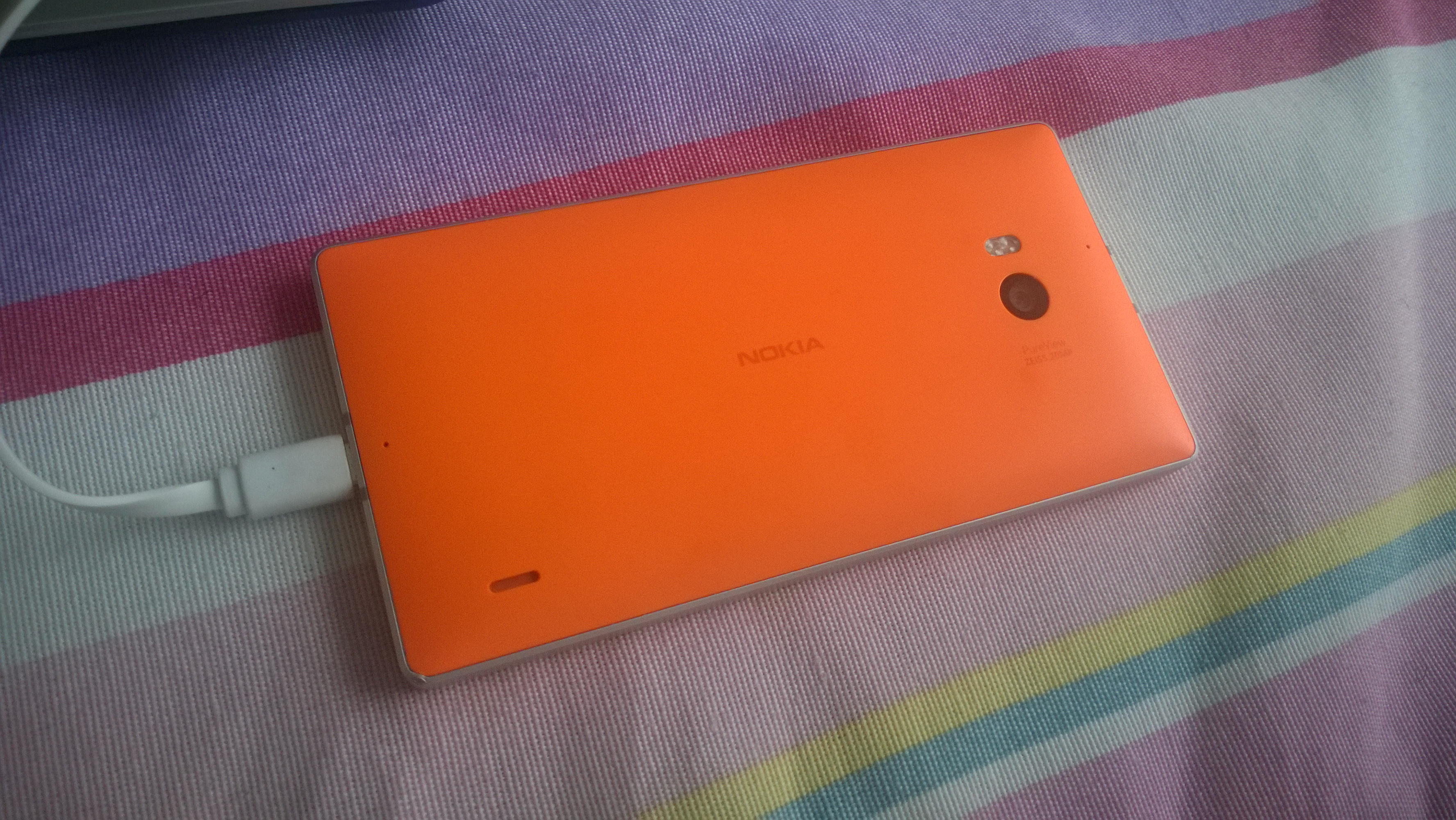
- Check both connector ends for bent pins, debris, fraying, or visible wear.
- Seat the connector fully. A half-plugged cable is not a connection; it is a prediction.
- Keep strain off the cable so the plug does not shift if the desk moves.
- Prefer a direct connection over a chain of adapters and hubs unless the setup requires otherwise.
USB-IF’s connector care guidance says the quiet part out loud: weight and stress wear ports out. The rule is simple. If the connector needs to be babysat, it is not secure enough to trust with your data.
5. Environment Safety
Interruptions are expensive because they make the process look random. It is not random. It is usually notifications, sleep settings, heat, or a user trying to do three other things at once.
- Turn on Do Not Disturb or silence notifications.
- Keep the devices cool and out of direct heat.
- Do not multitask during the transfer if you can avoid it.
- Disable sleep or aggressive lock settings for the duration of the process.
- Leave enough desk space so the cable is not snagged every time someone reaches for coffee.
Keep the transfer on a stable surface and leave it alone. The device does not need your commentary. It needs less interference.
6. Start Procedure
Use the same order every time. Consistency catches mistakes early.
- Unlock both devices.
- Open the app or the relevant setup screen on each side.
- Connect the hardware and confirm that the devices see each other.
- Review the transfer categories one more time.
- Start the transfer only after the setup is visibly stable.
Do not start the transfer and then go hunting for settings. That is how people create the kind of problem they later describe as “weird.”
7. If Something Looks Wrong Immediately
Stop early. The cheapest mistake is the one you notice before data moves.
- If the cable slips, stop.
- If the battery drops fast, stop.
- If the wrong account or wrong data category is selected, stop.
- If the device prompts for something unexpected, stop and re-check the basics.
Then change one thing at a time. Re-seat the cable. Recheck power. Re-open the app. Retry only after the cause is narrowed down. Blind repeated retries are not troubleshooting. They are noise with a progress bar.
8. Post-Transfer Safety
Do not declare victory because a progress bar hit 100 percent. Verify the result.
- Compare counts, recent dates, and a few known files or contacts.
- Keep the backup until you confirm the data is complete and usable.
- Disconnect safely once you know the transfer finished cleanly.
- Check for any background syncs that may still be finishing after the visible transfer ends.
If the issue becomes a repeat pattern, take notes before you change anything else: device model, operating system, cable type, what you selected, and what failed. That information is what Support can actually use. If you need to hand off the problem, use Contact with the same details. For more walkthroughs, the Blog keeps the rest of the playbook in one place. For site-wide navigation, the home page is the clean starting point.