
Mobile Transfer Support: What to Check When Your Device Isn’t Recognized (EPDA/EPC)
If the device is not being recognized, the first fix is usually boring. Good. Boring is cheap.
When a phone or tablet refuses to show up, the instinct is to blame the whole transfer method at once. That’s lazy, and lazy troubleshooting wastes time. I start with the same questions every time: Is the device actually powered and unlocked? Is the cable carrying data, or only charge? Did the app get the permission it needs? Or is the port, adapter, or driver quietly lying to you?
That first pass matters because the official troubleshooting playbooks point in the same direction. Apple’s guidance for an unrecognized iPhone or iPad says to check the cable, try another port, and unlock the device; Microsoft’s USB-C support pages focus on ports, adapters, drivers, and power. Those are not glamorous fixes, but they are the ones that keep working after the mood music stops. Apple’s recognition checklist and Microsoft’s USB-C troubleshooting page both make the same unromantic point: rule out the simple mechanical failure before you start hunting for a software ghost.
In this guide, I am not going to waste your afternoon with ceremony. You will learn how to separate a dead cable from a locked screen, how to tell a data problem from a permission problem, what to try in what order, and what details to collect if you need to hand the mess to Support or the Contact page. If you want the broader product overview first, keep Mobile Transfer open in another tab, or skim the FAQ after this for the easy answers that people keep pretending are not there.
Quick Triage: What “Not Recognized” Actually Means
There are two different failures hiding under one annoying label. The first is simple: the computer or transfer app never notices the device at all. The second is sneakier: the device appears, but the transfer does not start, stalls, or drops before the first useful step. Those are not the same bug, and treating them like the same bug is how people end up reinstalling software that was never the problem.
| What you see | Likely cause | First thing to check |
|---|---|---|
| No device appears anywhere | Cable, port, adapter, power, or unlock state | Re-seat the cable, try another port, unlock the device |
| The device charges but does not show up | Charge-only cable, blocked data path, or trust prompt not approved | Use a known data cable and look for the permission prompt |
| The app sees the device, but nothing transfers | App permissions, service restart needed, or compatibility mismatch | Restart the app/service and review permissions |
| Connection appears and disappears | Loose seating, bad cable, power-saving interruptions, or unstable port | Remove strain, test another cable and a direct port |
That table is the whole game. Do not keep poking random settings before you know which bucket you are in. A device that is charging but invisible is usually not asking for a dramatic fix. It is asking for the obvious one you wanted to skip.
Safety First: Power Cycle the Right Things
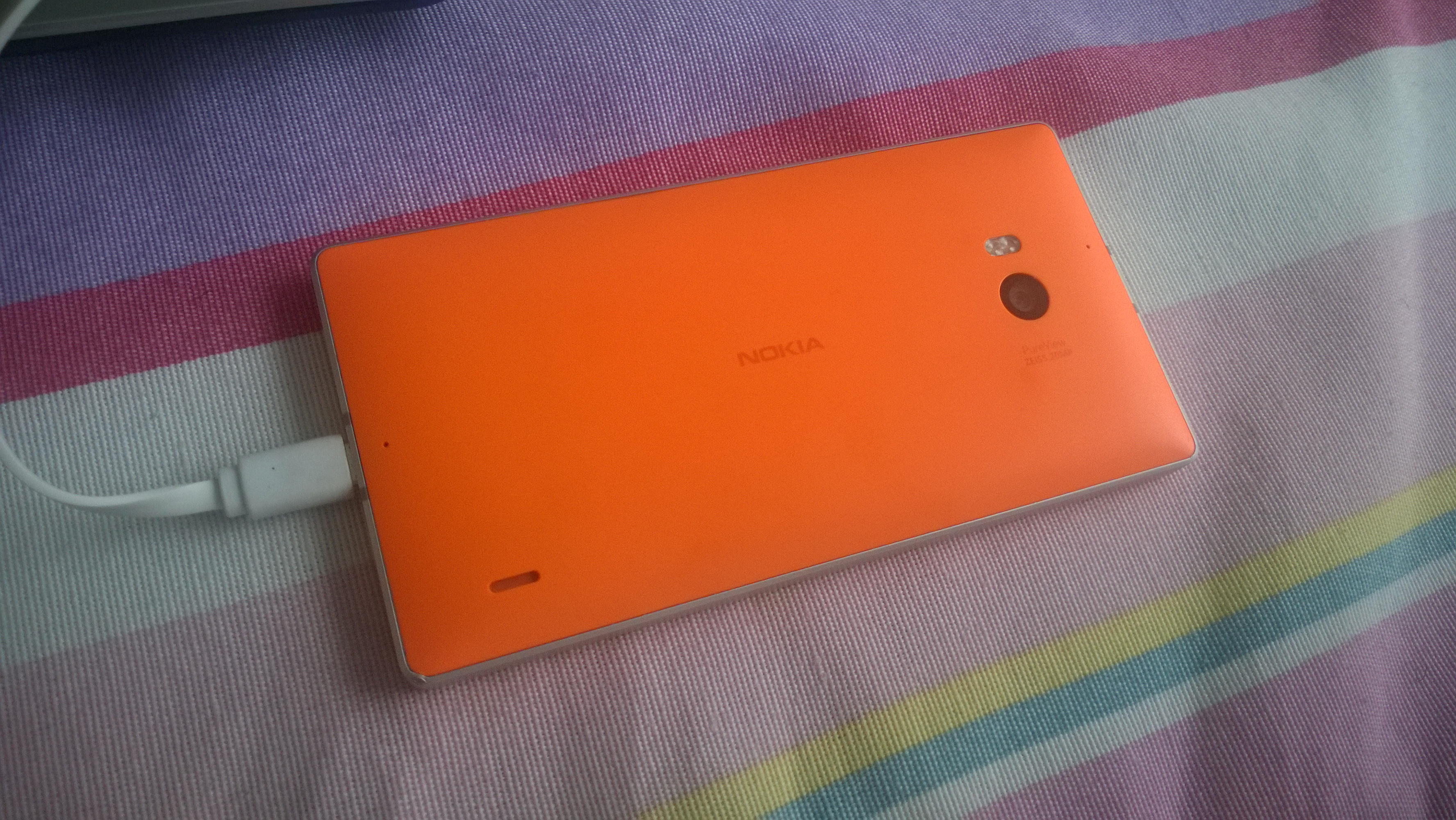
Before I touch ports or permissions, I clear the power state. Not because I love rituals, but because half-swallowed connections survive longer than they deserve to. Start with the device, the computer or transfer host, and any adapter or hub in the middle. Unplug the cable from both ends. If you are using a hub, docking station, or USB adapter, remove that too and go direct for the first test.
Then wait about 10 to 15 seconds. That pause matters more than people think. It lets the hardware and software drop the previous connection state instead of trying to negotiate with stale assumptions. Reconnect the device end first, then the computer end. If the device is still not recognized, power-cycle the device itself and the host system one at a time. Restarting the transfer app is fine, but do not treat an app restart as a substitute for a real reset if the cable path is suspect.
Power also includes battery behavior. A nearly empty phone can behave like a drama queen: screen dims, background services get throttled, and permission prompts get dismissed before you notice them. If the battery is low, charge it enough to stay awake while you test. The point is not to nurse the device through a marathon. The point is to keep it stable long enough to decide whether the connection is physically healthy.
Rule this out first: if a clean unplug, short wait, and direct reconnect changes nothing, stop assuming the problem is “the app.” It may still be the app, but you have not earned that conclusion yet.
Port and Cable Check: Seating Beats Hope
Good seating is not a philosophical concept. It means the connector is fully inserted, aligned, and not pulled sideways by cable weight. If you can wiggle it and the connection changes, the cable is not seated well enough for a stable transfer. That is not a mystery. It is gravity with a vendetta.
Look at three things: the connector ends, the port opening, and the strain on the cable. Bent shells, debris, lint, damaged plastic, or a port full of pocket fluff can break recognition without breaking charging. That is why “it still charges” is not proof that the data path works. Charge and data share a cable sometimes, but not always the same quality of cable.
If you can, use a known data-capable cable rather than the cable that happened to be in the drawer. A cable that only charges will happily pretend to be useful while refusing to carry transfer data. It is the cable version of an underachiever with excellent posture.
- Push the connector in fully and check that it sits flush.
- Remove cases or thick adapter chains that prevent the plug from seating cleanly.
- Keep the cable from hanging under its own weight while you test.
- Inspect both ends for visible damage, debris, or looseness.
- Test the same setup with a different known-good cable if one is available.
The useful question is not “does it fit?” The useful question is “does it fit well enough to stay recognized while the device wakes up, negotiates access, and asks the system for permission?” That is a higher bar. It should be.
Device-Side Checks: Unlock, Approve, and Stop Blocking Yourself
The device itself may be doing the blocking. Start with the screen unlocked. A locked phone can hide the prompt that would otherwise let the computer or transfer app see it. If you expect a trust prompt, USB permission request, or file-transfer chooser, keep the screen awake long enough to catch it. Apple’s guidance for devices not appearing on Windows specifically calls out cable seating and the need for the device to be unlocked and visible when connected correctly.
Android devices add their own small layer of mischief. If the phone defaults to charging only, or if the USB preference never changes to file transfer, the computer may see power but not data. Google’s help for USB storage devices is a useful reminder that the transfer mode has to match what you are actually trying to do. If your device offers a USB options prompt, choose the mode that allows the transfer method to read the device instead of merely powering it.
Then check the annoying background stuff: battery optimization, power saving mode, auto-lock, and any permission pop-ups that vanished too quickly. If the device goes dark immediately, set the screen timeout a little longer for the test. If the OS is aggressively managing apps, temporarily relax that behavior so the transfer app has a chance to finish the handshake. You can tighten things up again after you are done. The device will survive the experience.
What I look for is a clear signal that the device is willing to participate. If it is locked, dimming, ignoring prompts, or reverting to charge-only behavior, I stop calling the problem “connection” and start calling it “device state.” That distinction saves time because it tells you where to aim the next fix.
Connection Integrity: Isolate the Hardware Fast
Now isolate the path. If you have another cable, use it. If you have another USB port, use that too. If you are on a desktop, prefer a direct rear port instead of a front-panel port or hub for the first test. If you are on a laptop, try the other side. That is not because the other side is magical. It is because the mechanical wear and power behavior are different enough to expose a failing port.
This is the part where people try to be clever and accidentally become unhelpful. Do not add more adapters to solve an adapter problem. Do not test through a dock if the direct port already failed. Do not switch three variables at once and then congratulate yourself on “trying everything.” That is just a more expensive way to make the result unreadable.
A clean isolation test looks like this:
- Use one known-good cable.
- Use one direct port.
- Use one unlocked device.
- Keep the screen awake for the first minute.
- Watch whether the recognition state changes at all.
If the device starts working only when the cable is bent a certain way, the cable is the suspect. If it works on one port but not another, the port or hub is the suspect. If nothing changes no matter what you do, the problem is probably higher up the stack: permissions, software state, or compatibility.
Software and App Checks: Restart the Thing That Talks
Software should be checked after the hardware path is clean, not before. First, close the transfer app completely. If there is a background service, stop and restart that too. Then reopen the app and retry the connection from scratch. A stale session can keep the app convinced that a device is still absent even when the cable is fine.
Next, verify the obvious permissions. The transfer app may need access to files, storage, local network permissions, or system-level USB access depending on platform and method. If the app never asked for access, or if you denied a prompt by habit, the symptom will look like bad hardware even when it is actually a blocked handshake. That is why I keep saying the same thing in different clothes: symptoms lie, mechanism does not.
If your setup involves Windows, macOS, or another host OS with device-handling quirks, check whether updates are pending. Microsoft’s guidance on USB-C problems in Windows is useful because it makes the point bluntly: driver loading, port behavior, and adapter support can all break a normal-looking connection. That means a “device not recognized” label is sometimes the operating system refusing to cooperate, not the transfer app misbehaving.
One more practical note: if the app detects the device only after a restart but then loses it again, you are probably dealing with a timing or power issue. Keep the screen awake, avoid sleep, and remove background interruptions. If the app works after a restart but fails consistently later, save that fact. It is not trivia; it is the clue.
Compatibility Sanity Check: Make Sure the Method Fits the Device
At this point, if the path is clean and the permissions are sane, I check whether the device and OS are actually supported by the chosen transfer method. That means the model, operating system version, and connection mode all need to fall into the range expected by EPDA or EPC. I am not re-litigating which method you should use here. I am asking a narrower question: is this device supposed to work with this method right now?
When the answer is unclear, do not guess. Check the device model, OS version, cable type, and any method-specific requirements before you keep trying the same broken setup. For readers who want the higher-level overview again, the Mobile Transfer page is the right reset point, and FAQ is the right place to confirm whether you are just missing one small setting or dealing with a real compatibility limit.
Compatibility issues can look exactly like connection issues. That is the trap. A setup may power on, the cable may work, and the app may still refuse to recognize the device because the current OS version, transfer mode, or supported feature set is outside the expected window. When that happens, a different cable will not save you. The cable is not a wizard. It is just metal and insulation.
What you want here is a clean yes or no. If you cannot get a yes from the supported-device rules, stop treating the failure as a temporary glitch. It is probably a mismatch. That changes what you do next.
If It Still Fails: Give Support the Minimum Useful Facts
When the easy checks do not clear it, do not send a vague message that says “it doesn’t work.” That sentence is a cry for help, not a report. Support needs the smallest set of facts that narrow the problem fast. Give them the device model, OS version, the transfer method you selected, the cable type, the ports you tried, whether the device charges, and the exact point where recognition fails.
If you saw a prompt, mention whether you approved it or dismissed it. If the device is visible only when unlocked, say that. If the app shows a message or status label, copy it exactly. If you changed one thing and the behavior changed, mention that too. The goal is not to perform intelligence. The goal is to shorten the distance between symptom and cause.
Here is the note I would send if I wanted a fast reply:
Device model: [model]. OS version: [version]. Transfer method: EPDA/EPC. Cable type: [cable description]. Ports tried: [list]. Device behavior: charges / does not charge / appears only when unlocked. App behavior: [exact message]. Steps already tried: re-seat cable, different port, restart device, restart app.
That is enough to start a real diagnosis. Anything less is mostly weather reporting.
FAQ: The Short Answers People Keep Asking
Why does the phone charge but still not get recognized?
Because charging and data are not the same promise. A charge-only cable, a blocked permission prompt, or a locked device can still let power through while hiding the data connection.
What is the fastest fix to try first?
Unlock the device, re-seat the cable, and try a different direct USB port with a known data-capable cable. That three-step test clears out most false leads fast.
Should I reinstall the transfer app right away?
No. Reinstalling before you check cable seating, unlock state, and permissions is busywork. Restart the app/service first, then move to reinstall only if the software still behaves badly after the hardware path is clean.
Do USB hubs and adapters make this easier?
Usually not during diagnosis. They add another variable. Test direct first. Add the hub back only after the direct connection is stable.
What if the device is detected only part of the time?
That usually points to a loose connector, damaged cable, unstable port, or a power-saving interruption. Keep the screen awake and remove strain from the cable while you test.
When should I stop troubleshooting?
After you have tried one known-good cable, one direct port, one unlocked device, one restart of the app or service, and the method still fails. At that point, it is better to hand the facts to Support than to spend another hour rehearsing the same mistake.
Bottom Line
If your device is not being recognized, start with the physical path, then the device state, then the app, and only then the compatibility question. That order matters because it cuts through the fake drama. Most failures come from a cable that is not really carrying data, a device that is locked or withholding permission, or a port that looks fine and isn’t.
My diagnosis rule is simple: if you have not ruled out power, seating, unlock state, and permissions, you do not yet have a software problem. You have a problem that only pretends to be software.
Key points:
- Separate “not detected” from “detected but not connected.”
- Re-seat the cable, remove hubs, and test a direct port first.
- Unlock the device and watch for trust or permission prompts.
- Restart the app or service only after the cable path is clean.
- Check compatibility for the chosen EPDA/EPC method before blaming the app.
- Send Support the device model, OS version, cable type, and exact symptom.
If you want to keep moving, start at Support. If you need the higher-level setup context, return to Mobile Transfer. If you want the short answers without the theater, the FAQ page is there for a reason.