Mobile Transfer Support: How to Prepare Your Device Before EPDA/EPC Setup
A lot of “setup problems” are not setup problems. They are dead batteries, charge-only cables, full storage, stale permissions, or one polite security prompt you dismissed five minutes ago.
If you are about to start EPDA or EPC setup, the smartest move is not diving straight into the flow. It is spending ten minutes ruling out the boring stuff first. Boring is underrated. Boring is where most false leads live.
For broader planning context, teams can compare guidance from web.dev guidance before choosing a workflow.
Readers usually come here with a short list of practical questions:
- What should I check before I start EPDA or EPC setup?
- How do I avoid the usual power, cable, and permission mistakes?
- How much free space is “enough” for a clean transfer?
- What details should I collect before I contact Support?
This guide answers those questions without turning into a connection-troubleshooting script or a setup walkthrough. Different job. Different page. This one is only about pre-flight readiness: power, cables, ports, software, permissions, storage, and the handful of prompts that quietly ruin a clean start.
By the end, you will have a short checklist to run before setup, a simple way to rule out the common hardware and software blockers, and a clean note-taking list to send to Support or Contact if something still looks wrong.
Related implementation details are also covered in MDN Web Docs, which helps keep tool decisions grounded in established practices.

What “Device Prep” Means
For this article, device prep means making sure your device can actually complete a transfer before you touch the EPDA or EPC setup flow.
That includes five boring categories:
- Power: enough battery, stable charging, no low-power nonsense.
- Cables and ports: the right connector, a firm fit, and no obviously damaged hardware.
- Software readiness: current enough OS, any required app or driver already present, and a reboot if you just changed something important.
- Permissions and prompts: the device is allowed to expose files or communicate when asked.
- Storage: the destination exists, has headroom, and is writable.
Most failed setups follow the same pattern. The device can be seen, but not trusted. It can connect, but not write. It can charge, but not transfer data. It can ask for permission, but the permission was denied once and now the process acts offended in silence. None of that is advanced. It is just easy to miss when you are in a hurry.
This is not an EPDA/EPC setup tutorial. It is the short pre-check that stops you from chasing the wrong problem.
The 10-Minute Pre-Flight Checklist
Run this before setup. Not during. Not after the first failure.
| Check | What to confirm | Why it matters |
|---|---|---|
| Battery level | The device has enough charge to stay awake, or it is plugged into stable power. | Low battery states can throttle, disconnect, or trigger background power rules mid-process. |
| Charging stability | The charger and cable are seated properly and power is not cutting in and out. | An unstable charge creates random interruptions that look like software trouble. |
| Connection path | Use a direct, known-good port when possible. Avoid flaky hubs and “temporary” adapters. | Extra hardware layers are excellent at creating mystery symptoms. |
| Physical condition | No loose connector, frayed cable, debris-filled port, or bent contact. | Hardware that feels loose usually behaves loose. |
| Movement | Set the device down and keep the setup area still while you begin. | A half-seated cable can hold just long enough to waste your time. |
A simple rule: if a cable, adapter, or port feels unreliable in your hand, do not build a setup session on top of it. Fix that first.
Port and Cable Sanity Checks
This is where many people lose twenty minutes because “it sort of fits” feels close enough. It is not.
Match the connector to the actual job
- Use the connector type the device expects, not the one that merely powers it.
- If you are using an adapter, confirm both ends are correct for the device and the host.
- If a cable only ever charged the device and never moved data, treat it as suspect until proven otherwise.
Check for obvious damage
- Look for bent pins, cracked housings, exposed wire, or connectors that rock inside the port.
- If the contact surface looks damaged, replace the cable or adapter instead of negotiating with it.
- Do not do deep hardware repair here. This is inspection, not surgery.
Use the right port
- Some devices have multiple ports with different purposes. Use the one intended for data or transfer.
- If a laptop has several ports, pick the direct onboard port first instead of a dock.
- If you changed ports after a previous failed attempt, restart the detection process cleanly before assuming it worked.
Almost-compatible adapters are especially annoying. They can connect just enough to tease detection, then fail the moment real transfer work starts. That is not progress. That is bait.
Software Readiness: Updates, Apps, Drivers, Permissions
Hardware is only half the story. The rest is whether the device and the operating system are willing to cooperate today.
Check OS readiness
- Confirm the device is on a reasonably current operating system version.
- If the device has pending updates, decide whether to apply them before setup instead of discovering them after the first failure.
- If the system just updated and now behaves oddly, reboot once before you start guessing.
Confirm required software is already there
- If your workflow depends on a helper app, driver, or desktop utility, make sure it is installed before the device is connected.
- Open the app once if needed so the OS finishes first-run prompts before transfer time.
- If you installed or updated anything moments ago, restart the relevant device or computer.
Rule out permission blocks
- Make sure the device can grant file access, transfer access, or device communication when prompted.
- If access was denied earlier, revisit settings before starting again.
- Unlock the device if the platform requires it before trust or transfer permissions can appear.
This matters because a denied permission often does not fail loudly. It fails quietly, then encourages you to blame the wrong layer.
Storage and Transfer Target Planning
Storage problems are boring, predictable, and common. Which is why they keep winning.
Pick the destination before setup starts
- Decide where the transferred files should land.
- Use a clear folder name instead of dumping files into a mystery location you will not recognize later.
- If more than one account or user profile exists on the machine, confirm you are writing to the right one.
Keep free-space headroom
- Do not aim for a transfer that uses almost all remaining storage.
- Leave extra headroom for temporary files, indexing, and retries.
- If the destination is already close to full, clear space before setup instead of forcing a near-capacity run.
Confirm write access
- Make sure the destination folder is writable by the current user or account.
- If you are using external storage, confirm it is mounted and available.
- If the location is read-only, permission-limited, or intermittently available, choose another target first.
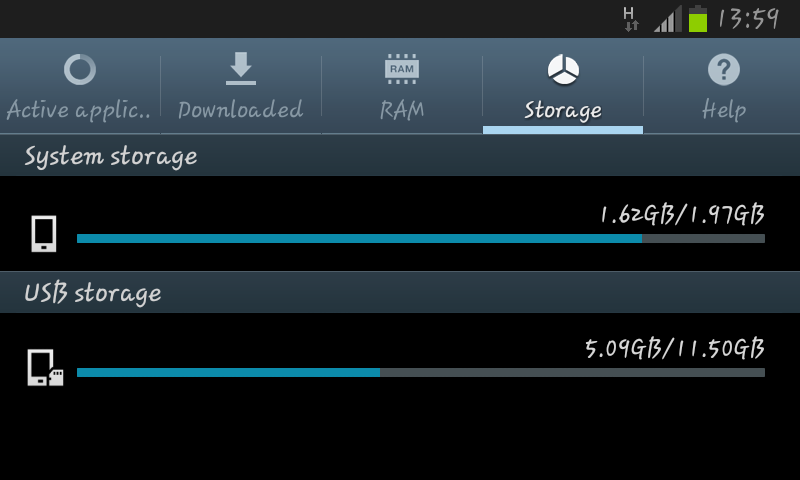
A simple example: if you are moving files to a device with 3 GB free and the transfer is expected to land near that limit, you do not have 3 GB free. You have a future support ticket.
Security Prompts You Might See
Expect prompts. They are normal. Ignoring them is also normal, which is the problem.
- Allow prompts related to file access, storage access, or device communication when they are clearly part of the transfer you are starting.
- Watch for “deny” or “not now” choices that can block transfer without producing an obvious error later.
- If you are unsure which option is right, choose the one that grants access to the transfer feature you intentionally started, then confirm the related setting afterward.
This is still pre-flight guidance, not bypass advice. Do not disable security features, alter system files, or force unsupported access. Just make sure the legitimate prompt you were supposed to approve was not dismissed on reflex.
Quick Run-Through: Confirm Visibility Before You Start
Before you begin the actual transfer flow, do one safe visibility check.
- Confirm the device appears in the relevant transfer or device UI.
- If it does not appear, do not launch into deep troubleshooting yet.
- Re-check power, the cable path, the selected port, device unlock state, and permissions first.
If the device is invisible before setup, the setup is not the first problem. Rule out the boring prerequisites before you blame the EPDA or EPC flow.
If Something Still Looks Off, Note These Details First
When you contact support, details beat adjectives. “It is weird” is emotionally valid and operationally useless.
Before you open a ticket, note:
- Device model and OS version
- Whether the device was on battery or plugged into power
- The exact cable or adapter type used, plus which port you used
- The transfer destination and the approximate free space available
- The exact error text, copied if possible
- A screenshot if the problem is visible but hard to describe
- What you already checked from this list so Support does not make you repeat the obvious
That short list saves time because it separates symptoms from assumptions. Support can work with symptoms.
Need Help?
If the pre-flight check is clean and the setup still does not look right, use the next step that matches the problem:
- Go to Support for the next round of setup help.
- Use Contact if you need a direct human handoff.
- Browse the blog if you want related guides before you retry.
- Return to the home page if you need the broader Mobile Transfer overview first.
If your team ends up turning this device-prep routine into an internal checklist, a simple web app generator can be a useful way to map ports, permissions, and handoff steps in one place without building the process from scratch.
The short version: check power, check the cable, check the port, check permissions, check storage, then start setup. Most preventable failures are hiding in one of those five rooms.