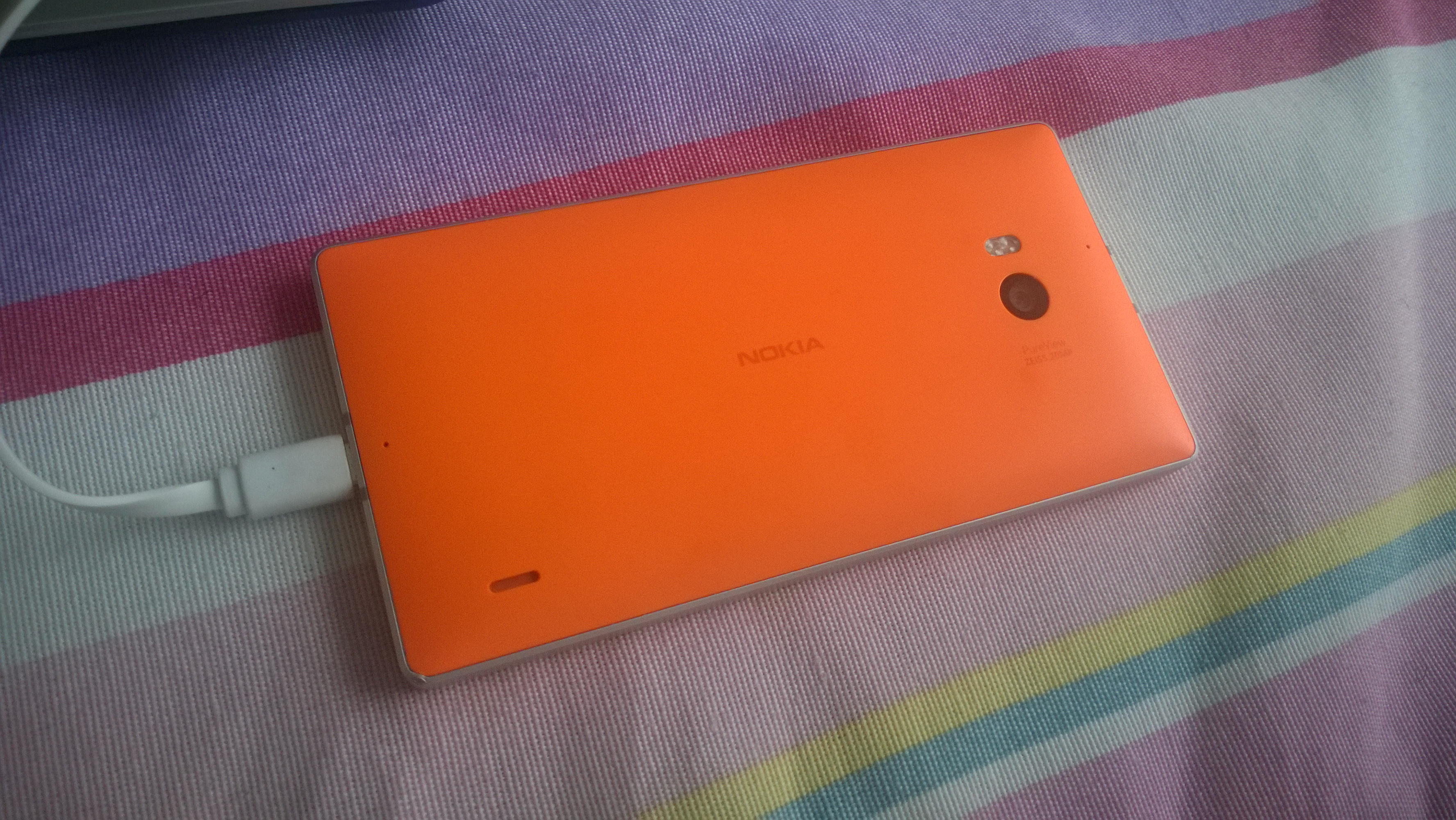
Mobile Transfer Essentials: Five Must-Know Tips for Beginners

Hi—welcome. If you’re new to Mobile Transfer, you’ll get better results faster when you treat your first transfer like a short, repeatable setup routine. Below are five must-know tips that prevent the most common “it connected, but nothing moved” and “why did it fail halfway?” problems.
Tip 0 (quick promise): Don’t change everything at once. One small change, then verify. That’s how you keep risk low and troubleshooting simple.
Tip 1: Preparing your devices before transfer
- Charge both devices (or keep them plugged in): low power can cause unstable connections mid-transfer.
- Clear the destination plan: know where files will land, and confirm there’s enough free space.
- Close anything that might interfere: pause non-essential apps/services that could take over the connection or permissions prompts.
- Restart once if you’re unsure: a clean baseline reduces “leftover state” from earlier attempts.
Reliability rule: if you can’t describe your setup in one sentence, you’re one error away from guessing.
If you want a checklist-style walkthrough, browse the blog index and pick the post that matches your symptom.
Tip 2: Choosing the right cables
The cable is not just a connector—it’s a data path. For best results:
- Use a cable designed for data transfer (not only charging). If you’re unsure, check the cable/device documentation.
- Inspect the ends: look for bent connectors, frayed housings, or loose-fitting plugs.
- Seat it firmly—but gently: a “nearly connected” cable can lead to intermittent failures.
Tip 3: Ensuring compatibility between devices
Compatibility is usually about three things: device support, the transfer mode your setup expects, and the software/permissions state.
- Confirm your device model: start with the exact model/series.
- Check your OS/app version: update to the latest stable version available for your device.
- Verify permissions when prompted: accept the prompts that allow the app to access the transfer target.
When you’re ready for a pre-flight comparison, review Support for guidance on what to check before you start.
Tip 4: Understanding transfer speeds
Speed expectations matter because beginners often treat a slow transfer like a failed transfer.
- Start with a small test: transfer one small folder/file first to confirm everything works end-to-end.
- Expect variability: performance can change with file type, destination storage, and connection stability.
- Watch for “real progress” signals: steady movement is a good sign; repeated resets usually aren’t.
Practical expectation: if the test completes successfully, the workflow is likely correct—then you can scale up with confidence.
Tip 5: Common pitfalls to avoid
Here are the five failure modes I see most often in beginner setups:
- Moving cables while transferring: even a slight wiggle can interrupt data flow.
- Not confirming available storage: the transfer may start, then stall at the most inconvenient time.
- Skipping app/OS updates: older versions can handle permissions or connection states differently.
- Using the wrong connection target: confirm the destination is the one you intended before you start.
- Trying multiple fixes at once: it becomes impossible to tell what worked.
A safe “first transfer” mini-script
- Prepare (power + storage + destination).
- Connect (inspect + seat cable + avoid touching it).
- Verify (a quick small test).
- Proceed (only after the test looks stable).
Need help faster?
If something still doesn’t work, don’t fight it in circles. Go to Support and include:
- Your device model
- Your OS/app version
- The cable/adapter type you’re using
- What you saw (error text or the exact point where it stops)
- Steps you already tried
For general background on why devices behave differently based on permissions and storage access, the Android permissions overview is a helpful reference.
If you’re managing multiple tools and handoffs in a workflow, AI integration services can be relevant as a concept for connecting systems cleanly—though Mobile Transfer setups still start with basic compatibility and stable connections.
Final checklist (save this)
- Charged devices (or plugged in)
- Enough storage at the destination
- Data-capable cable inspected and seated
- Updated OS/app + permissions confirmed
- One small test transfer before scaling up