Mobile Transfer Support: How to Back Up Your Data Before EPDA/EPC Setup
A transfer can usually be retried. Lost data is less forgiving. Back up first, then start EPDA or EPC setup with a calmer hand.
If you are preparing for a Mobile Transfer session, the business case for a backup is simple: it reduces the cost of a mistake. A dropped connection, a rushed folder choice, a full destination, or an accidental overwrite can turn a routine setup into a recovery exercise. This guide stays on the prevention side of the line.
Most readers arrive with a short list of sensible questions:
- What should I back up before I start?
- Should I use the device’s built-in backup or just copy files manually?
- How do I verify the backup without spending an hour on it?
- When is it safe to delete the originals?
Official platform guidance points in the same direction. Apple’s backup guide for iPhone and iPad and Google’s Android backup guide both frame backup as a standard protection step before device changes or migrations. Sensible systems do not rely on optimism. They rely on a second copy.
By the end of this article, you will have a short backup priority list, a clean decision between built-in backup and manual copy, a verification routine you can finish in 5 to 10 minutes, and a post-transfer retention rule that helps you avoid deleting the safety net too early.
Why Pre-Transfer Backups Matter
People tend to think about failure at the moment the transfer stalls. That is understandable, but incomplete. The more common risk is not dramatic failure. It is partial success: some folders move, some do not, one export is outdated, a destination is chosen in a hurry, or duplicates get mixed with the current files. Those are the mistakes that create cleanup work and uncertainty.
A backup protects against four common failure points:
- Overwrite risk: a current file is replaced with an older one or saved into the wrong location.
- Incomplete transfer risk: photos, documents, or app exports appear to move, but key items are missing.
- Device interruption risk: low battery, sleep behavior, or a disconnect cuts the session at the wrong moment.
- Human error risk: the wrong folder, the wrong direction, or the wrong cleanup step happens because the process was rushed.
That is why I recommend treating backup as a decision point, not an optional courtesy. Once the session starts, you want the room to make one mistake without turning the day into a recovery project.
If you still need the higher-level overview of the service, start from the home page. If the transfer itself becomes unstable later, use Support for the troubleshooting path. This article is narrower: protect the data first.
Quick Backup Decision: What to Back Up First
Do not back up everything blindly unless time and storage are generous. In many real setups, they are not. Prioritize the files that would be painful to recreate, hard to re-download, or operationally awkward to lose.
| Data type | Priority | Why it goes early |
|---|---|---|
| Photos and videos | Highest | Often irreplaceable, large, and easy to notice only after something is missing. |
| Documents and exported records | Highest | They are usually the files you actually need for work, records, or support follow-up. |
| Contacts and calendars | High | These are small in size but expensive in disruption if they do not survive cleanly. |
| App data and app-specific exports | High | Many apps keep information in their own formats, which makes late recovery harder. |
| Downloads and low-value duplicates | Lower | Usually easiest to replace, re-download, or defer until the core set is safe. |
A simple example helps. If you are preparing one phone for setup and it contains family photos, two signed PDF files, a notes export, and a large downloads folder full of installers, start with the photos, PDFs, notes, and contacts. The downloads folder can wait. Priorities are allowed to be unsentimental.
For readers working with photo libraries, Google Photos backup guidance is useful for confirming whether backup is active before you assume images are protected. Assumption is not a backup method.
Two Backup Paths: Built-In Device Backup vs. Manual File Copy
There are two practical routes before EPDA or EPC setup, and they solve slightly different problems.
Option 1: Built-In Device Backup
Use the built-in backup route when you want broader protection for the device as a system: settings, contacts, photos covered by the platform backup, and other data that the operating system knows how to preserve. This is usually the best first choice when you are protecting a personal device or a device with mixed content you do not want to inventory file by file.
Choose built-in backup when:
- You want platform-native recovery options if something goes wrong.
- You need a wider safety net than just visible files and folders.
- You do not have time to sort every item manually before setup.
Watch-outs:
- Not every app stores data in a way that is easy to inspect manually afterward.
- Cloud backup may need enough available account storage to finish properly.
- You still need a quick verification that the backup actually completed recently.
Option 2: Manual File Copy
Use manual copy when the priority is a defined set of files: a project folder, exported documents, selected media, or a transfer-ready collection you want to verify by name and date. This route is especially useful when you need a visible folder you can open, sort, and compare before starting the transfer.
Choose manual copy when:
- You care about a known file set more than a full-device safety net.
- You want to inspect the backup directly in a normal folder.
- You need to hand the backup to another person or machine later.
Watch-outs:
- Manual copy can miss app-specific data that is not exposed as normal files.
- It is easier to create duplicates or miss a folder if naming is messy.
- You need enough destination space and write access before you begin.
The practical answer for many readers is not “either/or.” It is built-in backup for broad protection, plus manual copy for the files you would most want to check with your own eyes. That gives you a safety net and a visible working copy.
Do Not Forget App Data That Lives Outside Normal Folders
This is where otherwise careful backups become incomplete. Photos and PDFs usually look like files. App data often does not. Notes apps, messaging apps, scanners, finance tools, password managers, and specialty business apps may store information inside the app, sync it to an account, or require an export step before you can preserve a readable copy.
Before setup, check whether any important app depends on one of these patterns:
- Cloud-only sync: the data appears on the device, but the real backup depends on the account being current and signed in.
- Manual export: the app offers an export, share, or save option that creates a real file you can keep.
- Device-local storage: the app keeps data on the device and may not include it in a simple folder copy.
- Mixed behavior: some data syncs automatically, while attachments or local downloads stay behind unless you copy them separately.
A practical example: if an app contains signed forms, scanned receipts, or project notes, look for an export or backup option before you assume the platform backup will give you an easy way to review that data later. If the information matters to the next day’s work, it deserves a visible copy you can open.
This is also why a short written checklist helps. Add one line called app-specific exports and list the apps that need attention. Small steps prevent expensive omissions.
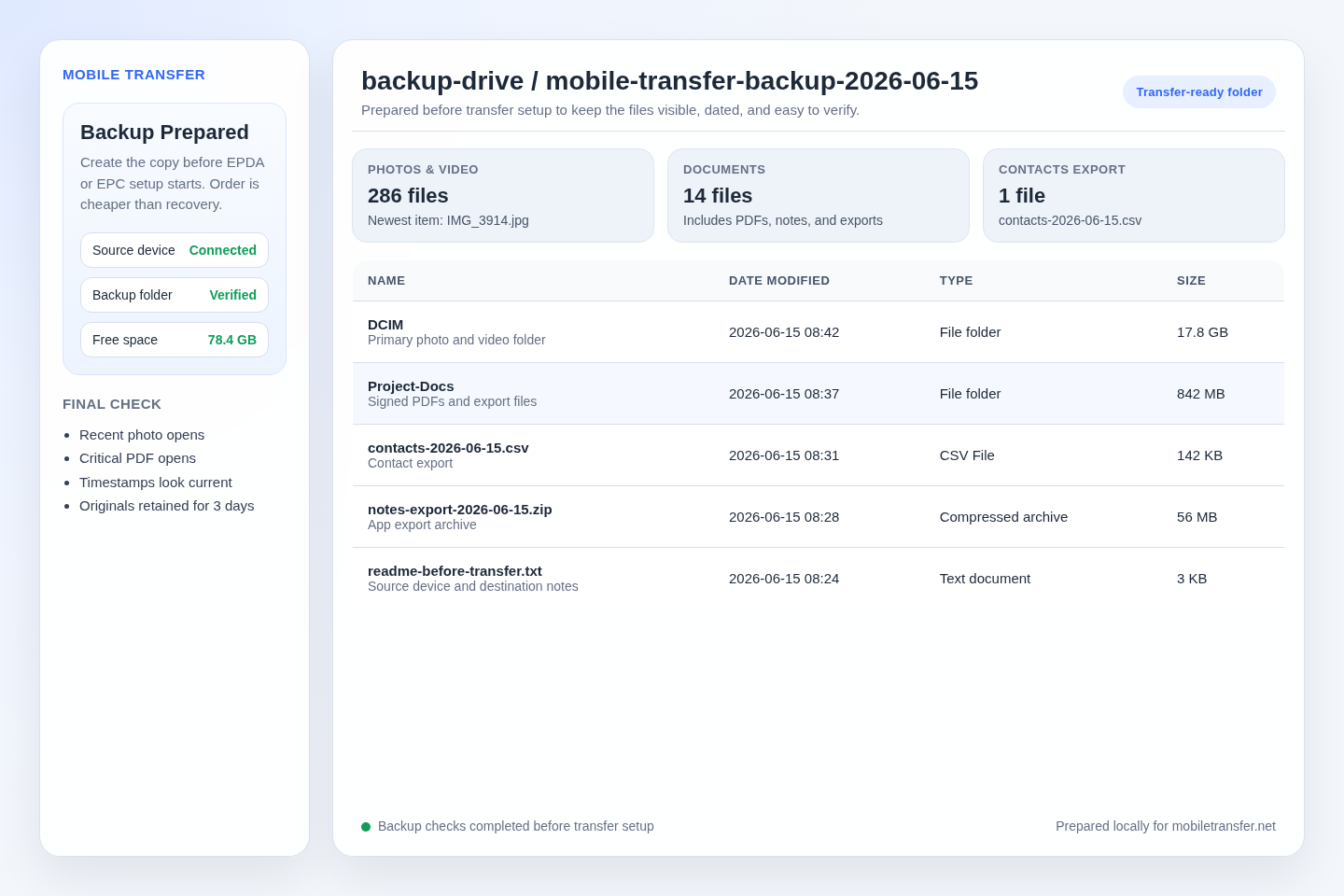
Create a Transfer-Ready Folder
If you choose manual copy for part of the job, do not dump files into a vague folder and call it organized. Build one destination folder that is easy to identify later.
I recommend a naming pattern like this:
mobile-transfer-backup-2026-06-15phone-a-pre-epda-backup-2026-06-15epc-prep-backup-photos-docs-2026-06-15
The important parts are the purpose, the source, and the date. “New folder” is not a process. It is a future argument.
Include:
- Photos and videos you would not want to recreate.
- Documents, PDFs, and exported records tied to work or account history.
- Contacts or calendar exports when those matter to the device handoff.
- App exports, notes exports, or chat exports where the app supports them.
- A short text note with anything you need to remember about the source or destination.
Exclude or defer:
- Obvious duplicates that only make verification harder.
- Large installers or downloads you can fetch again later.
- Temporary screen recordings, cache-like files, or “misc” folders you have not reviewed.
Example: if you have three folders named photos, photos-new, and photos-final, decide which one is authoritative before copying anything. Transfer is a poor time to discover your own naming system has given up.
Three Fast Backup Scenarios
Readers often know the principle and still want an example. Fair. Here are three common pre-setup cases and the shortest sensible backup move for each one.
Scenario 1: Personal phone with photos, contacts, and a few critical documents
Run the built-in device backup first. Then create a manual folder copy of the most important photos and documents. Verify that the newest photo opens and that the two or three critical documents are readable from the backup folder.
Why this works: the built-in backup protects the broader device state, while the manual copy gives you direct visibility into the files you are most likely to check later.
Scenario 2: Work device with exported PDFs, spreadsheets, and notes tied to a project
Create a dated manual backup folder with the project name, copy the active documents first, then export notes or app-based records into the same folder. If the device also supports a broader built-in backup, run that as a second layer rather than as a substitute for visible project files.
Why this works: project work is easier to verify by filename and date than by trusting a general backup dashboard to mean everything important is recoverable in practice.
Scenario 3: Shared family device with crowded storage and limited time
Prioritize irreplaceable items only: recent photos, videos, contacts, and any documents tied to travel, school, or account access. Skip the low-value downloads folder for now. Confirm the backup completed and keep the original device untouched until the transfer and review are finished.
Why this works: when time is limited, triage is the responsible move. The objective is not elegance. It is loss prevention.
Verify the Backup in 5 to 10 Minutes
Verification does not need to be elaborate. It needs to be deliberate. The goal is not proving every byte by audit. The goal is catching obvious failure while the original data is still in place.
- Open the backup destination. Confirm the folder is where you think it is and that it is not empty or partially populated.
- Open a few representative files. Check at least one recent photo, one older photo, one PDF or document, and one export or note file if relevant.
- Check timestamps. Make sure recent files look recent enough and older files are not all stamped at one unexpected time.
- Compare counts at a practical level. If you expected roughly 300 photos and there are 47, do not rationalize it.
- Check free space after the backup. You still need room for the transfer itself and for temporary working files.
If the destination is a Windows machine, Microsoft’s drive-space guide is a useful reference for making room before you proceed. The principle applies everywhere: almost enough free space is usually another way of saying not enough.
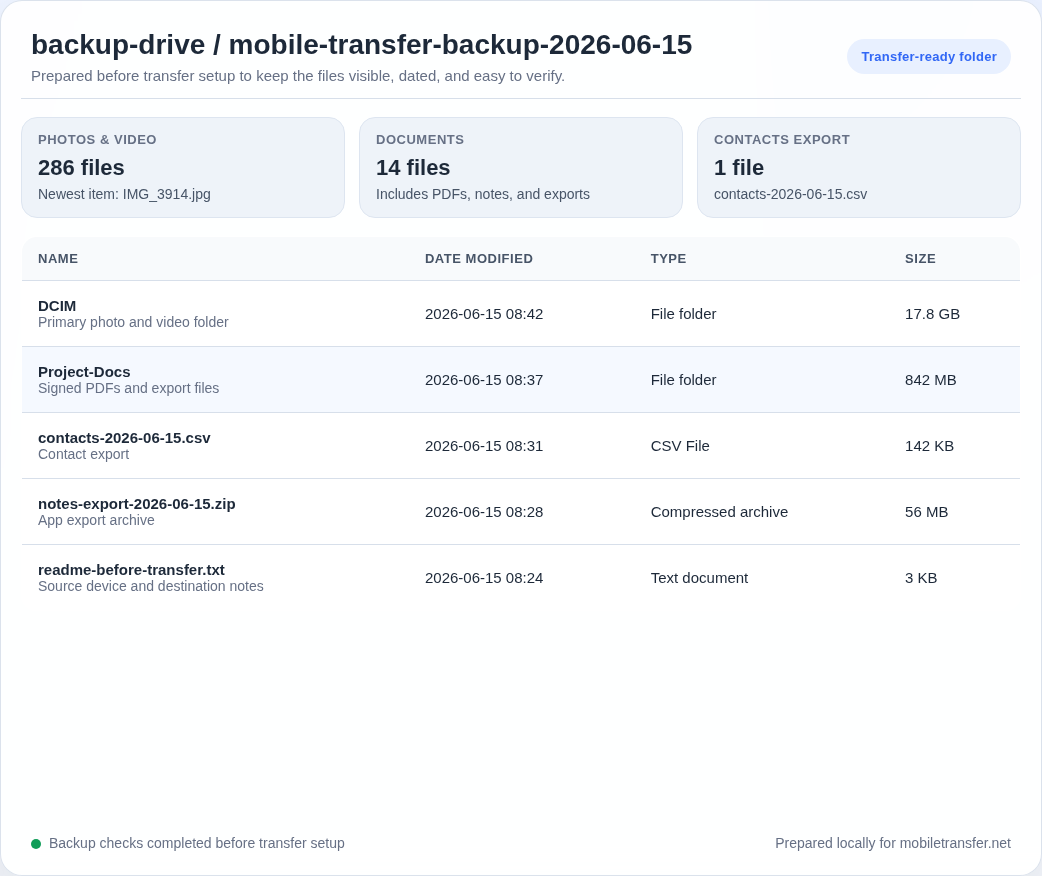
One fast example: open the backup folder, sort by date, open the newest image, open one old document, and confirm the folder count is in the right range. That takes minutes and catches a surprising number of quiet failures.
Power and Environment Checklist
Backups fail for the same mundane reasons transfers fail: low battery, unstable power, crowded disks, and interruptions. This is the part people skip because it feels too ordinary to matter. Ordinary is where most preventable mistakes live.
- Charge first or use stable power if the device is not comfortably above the low-battery zone.
- Keep the phone, tablet, or source device unlocked when needed so prompts and access requests are visible.
- Use a stable desk or surface instead of balancing the device where the connection can shift.
- Pause optional background tasks such as large downloads or sync jobs if they compete for storage or attention.
- Reserve uninterrupted time for backup, setup, and verification together, not only the transfer step.
If you are juggling a laptop, a phone, an adapter, and external storage at once, simplify the desk before you simplify the software. It is cheaper.
What to Do After the Transfer
When the transfer completes, do not move directly to cleanup. First confirm that the result is usable.
Run this post-transfer check:
- Open a few transferred files from the destination, not from the original device.
- Check that the expected folders and subfolders exist in the right structure.
- Confirm a few recent items and a few older items both survived.
- Keep the backup for a short retention window, usually a few days, until the destination behaves normally in real use.
That retention window matters because some problems are only noticed after the first real task: an attachment you need tomorrow, a contact you only try to call later, a note you assumed came across, or a folder that looked present until you opened it. If you delete the originals and the backup immediately, you remove your clean way back.
If you want related checklists after this step, browse the blog. If the result still looks incomplete or inconsistent, move directly to Support or use the Contact page with the file categories, destination, and the point where the result stopped matching expectations.
FAQ
How much free space do I need?
A safe rule is to leave more than the exact size of the data you plan to back up or transfer. You need space for the backup itself, some operating headroom, and possible retries. If the data set is 20 GB and the destination has 21 GB free, that is not comfortable space. It is a gamble dressed as a plan.
Should I delete originals right away?
No. Keep the originals until you have verified the backup and confirmed the transferred data is usable from the destination. For most readers, keeping the backup for a few days is the prudent move. Storage is usually cheaper than regret.
Is manual copy enough on its own?
It can be enough for visible files such as photos, PDFs, and exported records. It is not always enough for app-specific data or system settings. If the device matters as a whole system, use the built-in backup first and manual copy as a supplement for the files you want to inspect directly.
What if I only have time for one thing before setup?
Back up the highest-value files first: photos, documents, contacts, and any app exports you cannot easily replace. A partial but verified backup is better than a perfect backup plan you never start.
Final Priority List
The order is straightforward: identify the files that matter, create the backup, verify it, then begin EPDA or EPC setup. That sequence protects you from the most expensive category of setup mistake: the one that leaves you unsure whether the data is still intact.
If you need a clean next step, use this one: create the backup folder or run the built-in backup today, verify it before you connect anything, and keep that copy for a few days after the transfer is complete. That is not glamorous advice. It is durable advice, which is usually the more useful kind.