Common Issues with Mobile Transfers and How to Fix Them
Mobile transfers can look simple—until they fail mid-way. When something goes wrong (a connection drops, a transfer stalls, or data doesn’t show up where it should), you want fixes that are specific, repeatable, and low-risk.
Here are the questions people usually ask when a transfer doesn’t behave:
Why does the connection keep failing?
What should I do when the transfer stalls or won’t start?
How do I avoid partial transfers or missing data?
When is it time to get help?
Good troubleshooting is basically disciplined elimination: confirm what changed, narrow the failure point, then verify results. That “accuracy-first” approach is echoed in professional guidance on people-first, reliable documentation and search quality (see Google’s Search essentials) and in journalism verification standards that prioritize evidence over speed (see Reuters’ standards and values).
In this guide, you’ll get a step-by-step checklist for the most common mobile transfer issues—plus prevention steps so fewer transfers fail the first time.
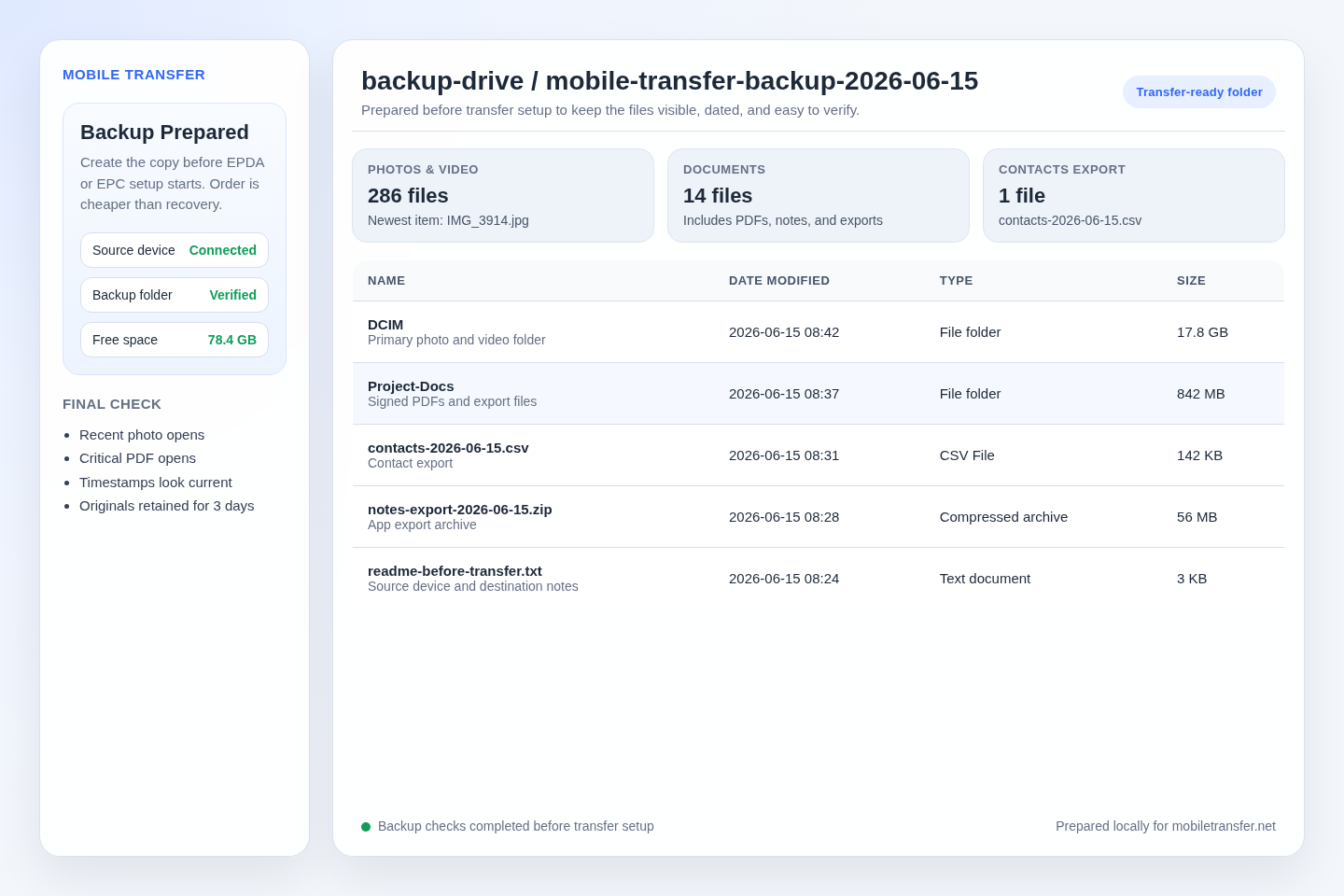
Overview of common mobile transfer issues
Most “my transfer didn’t work” reports fall into a few buckets:
- Connection problems (cable/adapter, ports, device sleep, permissions).
- Setup or start issues (missing prerequisites, wrong device/transfer mode, insufficient storage).
- Stalls and timeouts (large data sets, unstable links, resource constraints).
- Partial transfers (interrupted mid-way, unexpected app/data behavior).
- Missing or inconsistent data (unsupported items, caching, permissions, or settings mismatches).
Step-by-step troubleshooting guide for each issue
1) The connection keeps failing
Symptom: The transfer tool disconnects, can’t detect the device, or connection status flips repeatedly.
Fix (in order):
- Confirm you’re using the right cable/connector and that both ends are firmly seated. If you have adapters, try an alternate compatible setup.
- Disable device sleep (on both the source and destination devices) during transfer. Sleep often breaks the link.
- Check storage and power: low battery or a nearly full device can cause permission/timeouts mid-transfer.
- Restart the transfer workflow: close the app/tool, reboot the devices, then start the transfer again.
- Re-check permissions: make sure the destination device/app is allowed to access the relevant data categories.
Verification: Before starting the bulk transfer, run any “connection test” or pre-flight check your workflow provides, then confirm detection stays stable for several minutes.
2) The transfer won’t start (or errors immediately)
Symptom: The tool refuses to begin, or throws an error before copying any data.
Fix:
- Double-check prerequisites (supported device type, transfer mode, required app versions, and any “enable access” toggles).
- Free up space on the receiving side. If the destination can’t write the transferred data, the process may fail early.
- Remove conflicting setup: if another transfer/app is connected at the same time, disconnect it and retry.
- Try a smaller batch (if your workflow supports it). A successful small run tells you the setup is mostly correct; the issue may be data category specific.
Verification: After a successful “start,” confirm the tool begins enumerating or copying at least one data category before walking away.
3) The transfer stalls halfway
Symptom: Progress stops increasing, the process takes far longer than expected, or you hit a timeout.
Fix:
- Don’t assume it’s frozen: wait a little longer if you’re moving large media libraries or backups. Some categories enumerate first.
- Stabilize the environment—use a direct connection, keep devices on power, and avoid heavy background activity.
- Reduce variables: close other apps that might compete for resources or prompt permission popups.
- Split the transfer by category (contacts first, then photos, then app data). Smaller runs reduce the cost of failure.
- If you must restart, use your workflow’s safety steps (for example, preparing a backup folder first) so you don’t lose the opportunity to recover.
Verification: After resuming, confirm the same category continues where it left off—or that you can re-run a clearly defined batch without duplicating everything.
4) The transfer is partial (some data arrives, some doesn’t)
Symptom: You see some results, but key items are missing or only partially copied.
Fix:
- Identify what finished: check the transfer summary for completed vs. pending categories.
- Compare counts (if available): e.g., contacts number, photo library size, or message type counts.
- Repeat only the missing categories rather than redoing everything from scratch—this saves time and reduces the chance of errors.
- Look for permission differences: missing “allow access” permissions on the destination side are a common cause of partial results.
- Verify on-device: don’t just rely on the tool’s “done” state—open the destination apps and confirm the missing categories specifically.
Verification: When a transfer completes, the trustworthy check is “does the destination app behave as expected?”
5) Missing or inconsistent data (photos, contacts, messages, or files)
Symptom: Data arrives, but not all items match what you expected.
Fix:
- Confirm support for the data type: some categories may require specific permissions or may not transfer in the same way between device types.
- Check duplicates and sorting: some apps rebuild indexes after transfer, so results can appear “incomplete” until indexing finishes.
- Review app-specific settings: message history, photo libraries, and contact sync can be affected by account/sign-in status.
- Retry targeted recovery: if only one category is missing (e.g., contacts), re-run that category with the device awake and permissions confirmed.
Verification: For media, verify inside the destination gallery/library; for contacts, check both the contacts app and any synced account view.
Preventative measures to avoid future problems
Prevention is cheaper than recovery. If you want fewer surprises, standardize your process:
- Prepare before you start: create/confirm a backup plan and keep notes on what you’re transferring (especially if you’re doing multiple runs).
- Keep devices stable: run on power, disable sleep, and avoid heavy background tasks.
- Use a clean connection: if you’ve had cable/port issues, swap the physical connection before you repeat software troubleshooting.
- Split by risk level: start with contacts/critical data, then move photos and large media last.
- Verify as you go: after each category, open the destination app and confirm the key items are visible.
If you need a practical reminder of transfer readiness habits, you can also review the site’s general guidance in Mobile Transfer and the Support page when you hit a repeat failure.
When to seek professional help
Some failures aren’t just “user error.” Consider escalating if:
- The connection fails after trying a different cable/port setup and restarting both devices.
- Multiple data categories are missing after a successful pre-flight check.
- You suspect data corruption, accidental deletions, or a misconfigured account/sync state.
- You’ve repeated troubleshooting steps and the behavior is consistent across attempts.
What to collect before you contact support: the error message (exact wording), what device models you used, what data categories were selected, and at which step the transfer stopped. That’s the fastest path to a clean diagnosis.
Conclusion
Most mobile transfer issues can be solved by narrowing the failure point: stabilize the connection, confirm prerequisites, split by category, and verify results in the destination apps. If the same issue keeps happening after you’ve removed the obvious variables, that’s the moment to escalate—because repeated guessing costs more than a structured diagnosis.
Next step: Start with one targeted category today (critical data first), keep devices awake and powered, and verify after each batch. Then use Support if you see the same failure pattern again.
External reading:
For general guidance on how modern content should prioritize reliability and user usefulness, see Google Search Essentials.
For evidence-first standards, see Reuters: Standards and values.