Mobile Transfer Support: A Beginner’s Guide to Backing Up Photos, Contacts, and Messages
Before you move a single file, make the backup boring. A useful backup is not dramatic. It is complete, readable, and recent enough to matter when you need it. That is the whole job. Everything else is decoration.
People usually start asking the right questions only when a transfer is already on the calendar: What should I save first? Where should I put it? How do I know the copy is real? Apple’s back up iPhone guide and Google’s back up or restore data on your Android device instructions both point to the same practical rule: use the built-in backup path first, then verify what was included before you trust it.
This guide keeps the process simple. You will learn what should always be backed up first, how to choose between cloud, computer, and external storage, how to confirm that photos, contacts, and messages were included, and how to avoid the mistakes that usually turn a “backup” into a very expensive superstition. If you want a short support path while you work, start with the Support page; if you want a direct human reply, use the Contact page. The home page is the quickest route back to the main site navigation.
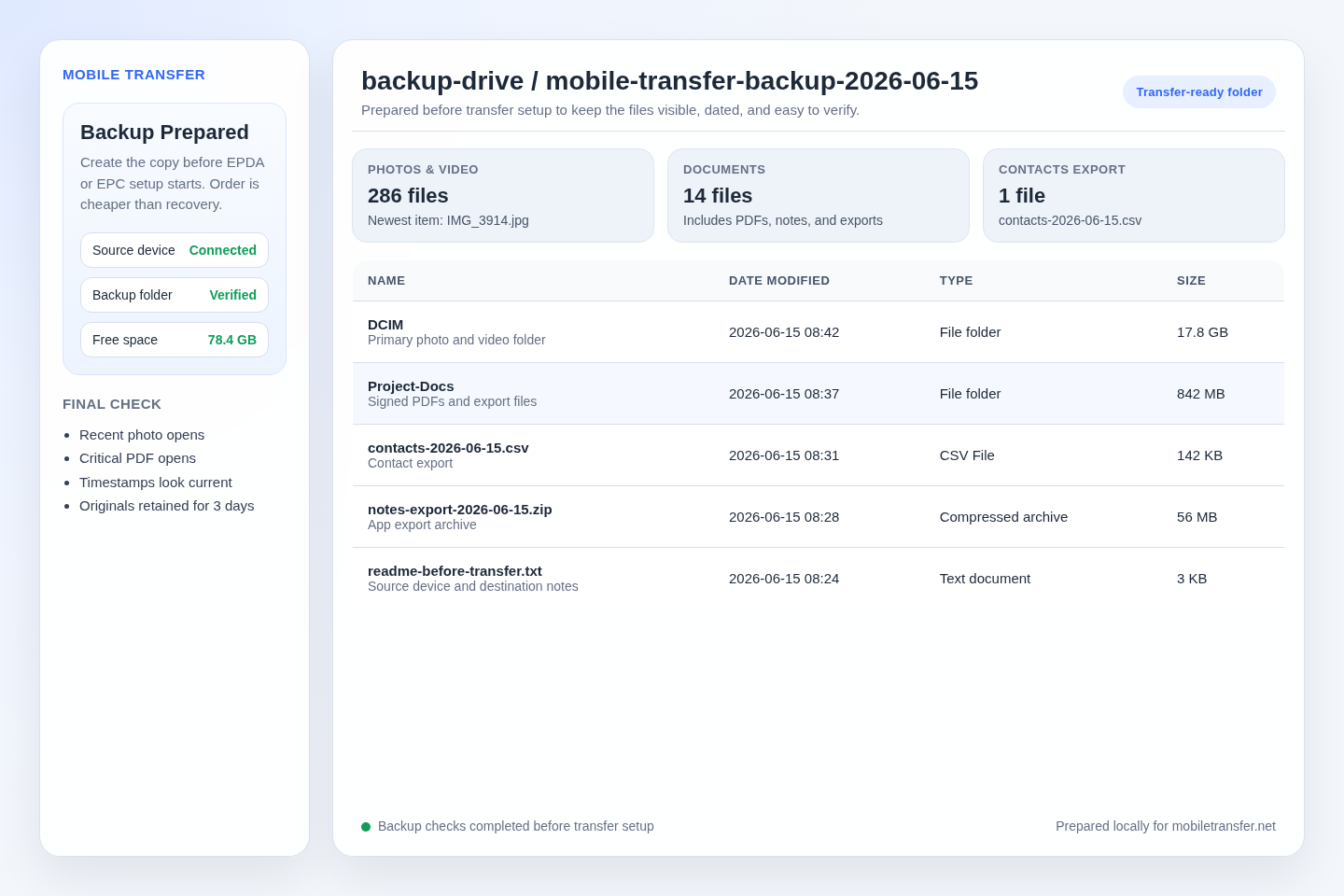
What Should Always Be Backed Up First
The safest default is to back up the data you would genuinely miss tomorrow. That sounds obvious until a transfer reveals that the “important stuff” lived in three different places, two accounts, and one forgotten app. Begin with photos, contacts, and messages. These are the items most people need immediately after a device change, and they are also the easiest to overlook when you are rushing.
Do not try to solve every possible backup problem in one pass. Decide what counts as essential first. Then capture that set completely before you move on to less urgent items such as downloads, notes, app files, or device settings. The question is not whether the backup is impressive. The question is whether it will help you recover the data you actually care about.
| Data type | What to include | Quick check | Common miss |
|---|---|---|---|
| Photos | Camera roll, screenshots, saved images, and any albums you would want after a transfer | Open the backup or cloud album and confirm recent, mid-range, and older photos are present | Only saving the camera roll and forgetting downloads or shared albums |
| Contacts | Device contacts, account-synced contacts, and any local address book entries not already in the cloud | Export or sync contacts, then open a sample file or contact list to confirm names and numbers | Assuming synced contacts and local contacts are the same thing |
| Messages | Text threads and attachments that matter to you, plus any message history the backup method supports | Check the backup summary or export log for message coverage | Thinking every messaging app stores history the same way |
For contacts, Google’s export, back up, or restore contacts instructions are a good example of a separate contact backup that can be opened later. For photos, Apple’s documentation shows why it helps to know whether your photos are being handled by sync or by a device backup. That distinction is small on paper and expensive in real life.
Practical example: if your family photos live in a cloud gallery, your work contacts live in a different account, and your message history matters for two authentication codes and one very inconvenient thread, you do not have “one backup.” You have three backup questions. Answer each one separately.
Choosing a Backup Location: Cloud, Computer, or External Storage
There is no universal best location. There is only a best fit for the kind of copy you need. Cloud storage is the easiest option for beginners because it automates part of the work. A computer backup gives you a local copy you can inspect directly. External storage gives you an offline copy that is independent of your accounts. Each option has a cost, and the cost is usually inconvenience, not money.
A reasonable default is to keep at least two copies: one cloud copy for convenience and one local copy for control. If your cloud account is inaccessible, the local copy still exists. If the local device fails, the cloud copy still exists. That is not paranoia. That is arithmetic.
| Location | Strengths | Tradeoffs | Best fit |
|---|---|---|---|
| Cloud | Automatic, accessible from more than one device, easy to refresh regularly | Depends on account access, storage limits, and the right sync settings | Beginners who want the least manual work |
| Computer | Easy to inspect, fast to copy, useful for a complete local archive | Can be lost if the computer fails and there is no second copy | Readers who want a file they can see and manage directly |
| External storage | Offline, portable, and separate from account-based sync | Can be misplaced, damaged, or forgotten in a drawer for three years | Readers who want an extra layer of physical backup |
If you are using Android, Google’s back up your device page is a useful model for how a cloud backup can run quietly in the background. If you are using an iPhone or iPad, Apple’s backup methods page explains the two most common paths: iCloud and computer backups. Both are normal. Both are useful. The right one depends on whether you value convenience, direct access, or a second copy you can hold in your hand.
Decision shortcut:
- If you want the simplest option, start with cloud backup.
- If you want a readable copy on your desk, add a computer backup.
- If you want the least dependence on one account or device, add external storage too.
How to Confirm Photos, Contacts, and Messages Were Included
Confirmation is the part most people skip, and it is the part that matters most. A backup that cannot be checked is only a hopeful theory. The easiest way to verify a backup is to use three layers of proof: status, size, and spot check. If all three agree, you are probably in good shape. If one of them fails, do not move on yet.
1. Check the backup status
Start with the most boring detail: the date and time of the last successful backup. If the status screen shows yesterday and you have been taking new photos all week, the backup is already stale. If the status screen shows “in progress” for too long, stop and figure out why before you trust it. The last thing you want is a half-finished copy pretending to be a finished one.
2. Check the size or file count
Backup size is not a perfect measure, but it helps. A photo backup that reports almost no storage use is suspicious. A contact export file that is only a few bytes long is not much of a backup. A message archive with a suspiciously low count may indicate that attachments or older threads were excluded. Use size as a quick smoke test, not as final proof.
3. Use the backup software’s own summary
Most built-in tools tell you what they included. Read that screen. Do not guess. If the summary lists photos but not contacts, you have a narrower backup than you planned. If it lists contacts but not message history, that is fine only if you intentionally decided to handle messages another way. The rule is simple: if the software shows what it included, believe the screen more than your memory.
4. Do a manual spot check
Now open the actual backup or exported file. Look for a small sample that covers different points in time and different data types. You do not need to inspect every item. You need to confirm that the copy is readable and that the contents look like your data, not a blank folder with optimism attached.
Practical examples:
- Open three photos: one recent, one from last month, and one older image that you would notice if it were missing.
- Open three contacts: a family contact, a work contact, and one saved locally on the device if you still have any local-only entries.
- Open one message thread with attachments if those attachments matter to you.
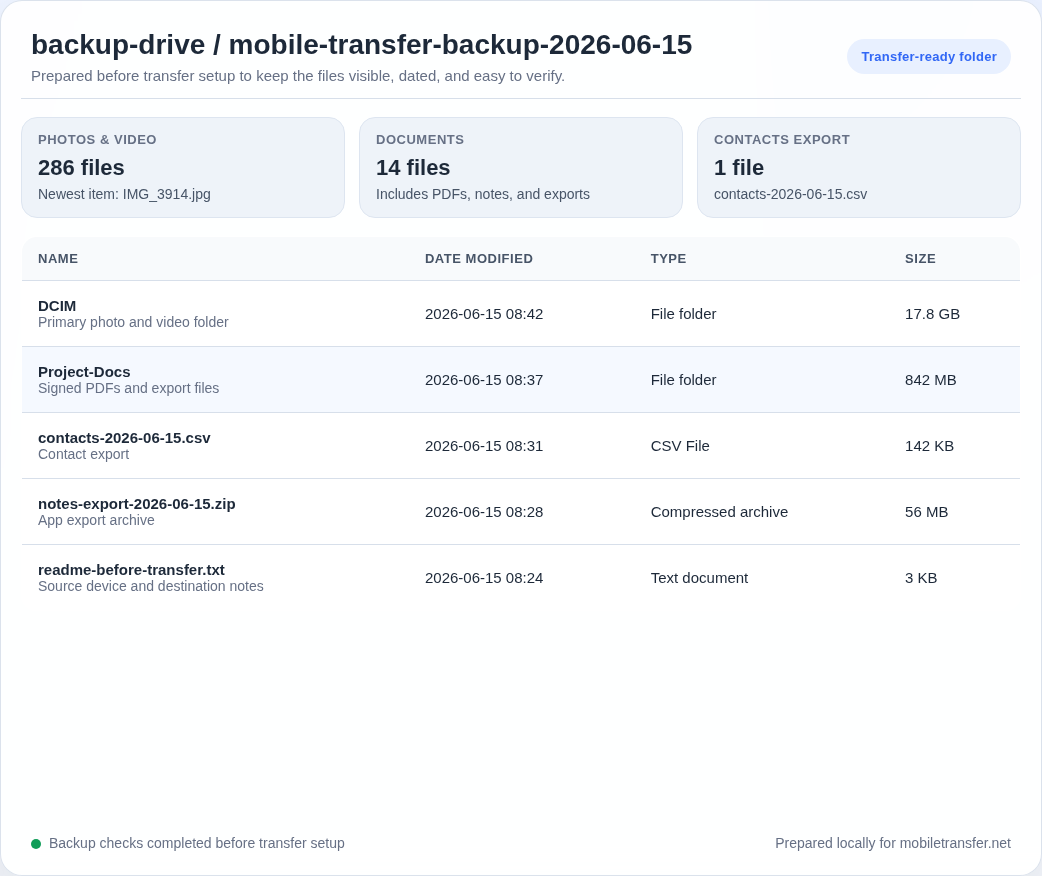
The purpose of this step is not to prove perfection. It is to prove usability. A backup that opens cleanly is far better than a backup that only exists in theory.
One useful habit: record the backup date and location in a note or checklist. That makes the next check faster and reduces the chance that you will repeat an old backup by accident. A backup no one can identify later is just a mystery file with good intentions.
Common Backup Mistakes to Avoid
Most backup failures are not technical disasters. They are ordinary oversights. The good news is that ordinary oversights are preventable. The bad news is that they are often repeated because they feel harmless at the time. Watch for the patterns below.
Not backing up regularly
A one-time backup is better than nothing, but it ages quickly. Photos, contacts, and messages change constantly. If you wait until the day of a transfer, you will probably miss recent data. Set a simple rhythm instead: before a device change, before a reset, and after any major batch of new photos or contacts.
Assuming sync is the same as backup
Sync is convenient because it keeps devices aligned. Backup is safer because it gives you a copy you can restore later. Those are related but not identical. Apple’s guidance around iCloud Photos and iCloud Backup shows why the distinction matters, and Google’s backup pages make the same point in a different way. If a service is merely syncing, deleting something everywhere can also delete it from the synced copy. That is not the same as a backup. It is a mirror with confidence issues.
Overlooking certain data types
People remember photos and forget contacts. Or they remember contacts and forget message threads with attachments. Or they back up the main account but miss a local folder, a SIM contact list, or an export file stored in the wrong place. The fix is boring: make a list before you back up. Then check each category once, slowly.
Failing to test the backup
This is the most expensive mistake because it feels responsible right up until the moment it fails. A backup you never open is not trustworthy. Test it while the original device still works. Open the file. Restore one harmless item if the tool allows it. Confirm that the copy behaves like data, not like a ceremonial artifact.
Keeping the only copy on the same device
If your backup lives only on the phone you are about to transfer, it is not really a backup. It is a duplicate waiting for the same failure. Move the copy somewhere separate. Cloud, computer, or external storage all count if they are independent of the source device.
Practical example: if you exported contacts to a CSV or VCF file, save one copy in cloud storage and one on a laptop. Then open both. If one file disappears or becomes unreadable, the second copy still gives you a clean exit.
A Quick Backup Verification Checklist
Use this checklist before you start the transfer. If you cannot check a box, pause and fix that item first. That is faster than discovering the problem later and pretending it was “just a minor issue.”
- [ ] Photos are backed up and I can see recent, mid-range, and older examples.
- [ ] Contacts are exported or synced in a way I can open later.
- [ ] Messages are included, or I have a separate plan for message history and attachments.
- [ ] The backup date and time are recent enough for my needs.
- [ ] I checked the backup summary or file count instead of assuming it worked.
- [ ] I opened at least one sample item from each important data type.
- [ ] I know where the backup is stored and how to find it again.
- [ ] I have a second copy for the data that matters most.
- [ ] I can still access the account, password, or device needed to restore it later.
- [ ] I saved the support path in case I need help after I finish.
If one item fails, correct that item before you continue. If two or more items fail, stop and rebuild the backup instead of trying to rescue a weak copy during transfer. That usually costs less time and much less confidence.
Recommended tools for verification:
- A file browser, so you can open the backup location directly.
- A simple notes app or checklist, so you can record the backup date and location.
- The built-in backup summary on your device or cloud account, so you can confirm what was included.
- A second device or account, if you want to verify that a copy is readable outside the original phone.
Conclusion
The safest backup strategy for a beginner is not complicated: start with photos, contacts, and messages; keep at least one cloud copy and one local copy if you can; and verify the backup before you transfer anything. The work is small. The discipline is the point. A backup is only useful when it is both complete and usable.
If you want the shortest possible next step, use the Support page for a focused checklist, then come back here and check your backup before you move on. If you need help with a specific setup, the Contact page is the right place to ask. When you are done, the home page will take you back to the rest of the site without ceremony.
- Back up photos, contacts, and messages first.
- Choose cloud, computer, or external storage based on the kind of control you need.
- Verify date, size, and sample items before you trust the backup.
- Avoid sync-only assumptions and one-device-only copies.