Mobile Transfer Support: How to Organize Files Before You Move Them
Before you move a single file, spend five minutes making the file system less theatrical. A good mobile transfer is not won by brute force. It is won by making the right files easy to find, easy to verify, and hard to forget.
When people ask why a transfer went sideways, the answer is usually not mysterious. It is one of three things: something was never backed up, something was filed in the wrong place, or nobody could tell whether the important stuff had actually moved. That is a boring failure mode, which is exactly why it happens so often.
The basic rule is simple: organize first, move second. That applies whether you are shifting contacts, photo libraries, documents, or app exports. If you want a baseline from the platform side, Apple’s backup guidance for iPhone and Google’s Android backup instructions both point to the same first principle: protect the source before you rearrange the furniture. If contacts are the part you worry about most, Google’s Contacts export guide shows the shape of a clean address-book backup: one export, one date, one place to look later.
In this article, I will walk through a clean pre-transfer workflow: how to sort files into useful categories, what to move first, how to spot duplicates and clutter, and how to run a final review before you start the transfer session. If you want help once you get into the weeds, the site Support page is the right place to start. If you want more articles after this one, the Blog index keeps the whole library in one place.

Why File Organization Matters Before a Transfer
Organization saves time in the dull, reliable way that good systems always do. It reduces the number of files you have to inspect manually, cuts down on accidental skips, and makes verification almost pleasant. Almost. Nobody is going to frame the experience, but at least it will not feel like solving a puzzle after the puzzle box has been emptied onto the floor.
Without a basic file structure, the transfer process becomes a guessing game. You start with the files that feel important, then discover that three similar folders contain nearly the same photos, one document lives in Downloads, another copy sits in Messages exports, and the actual latest version is hiding in a folder named final_final_use_this_one. That folder name is a cry for help.
Organizing first gives you three real benefits:
- Fewer errors. When every file has a place, fewer files get left behind.
- Faster transfer prep. You spend less time searching and more time moving the right data.
- Easier verification. A tidy structure makes it obvious what moved and what still needs attention.
That last point matters more than people expect. A transfer is not complete just because a progress bar reached the end. It is complete when you can confirm that the contacts, photos, documents, and other essential items actually landed where they were supposed to land.
If you like systems that make later steps easier, think of the file setup as the index before the book. A messy index is still an index. It is just a less useful one.
A Simple Folder-and-Category Method for Mobile Data
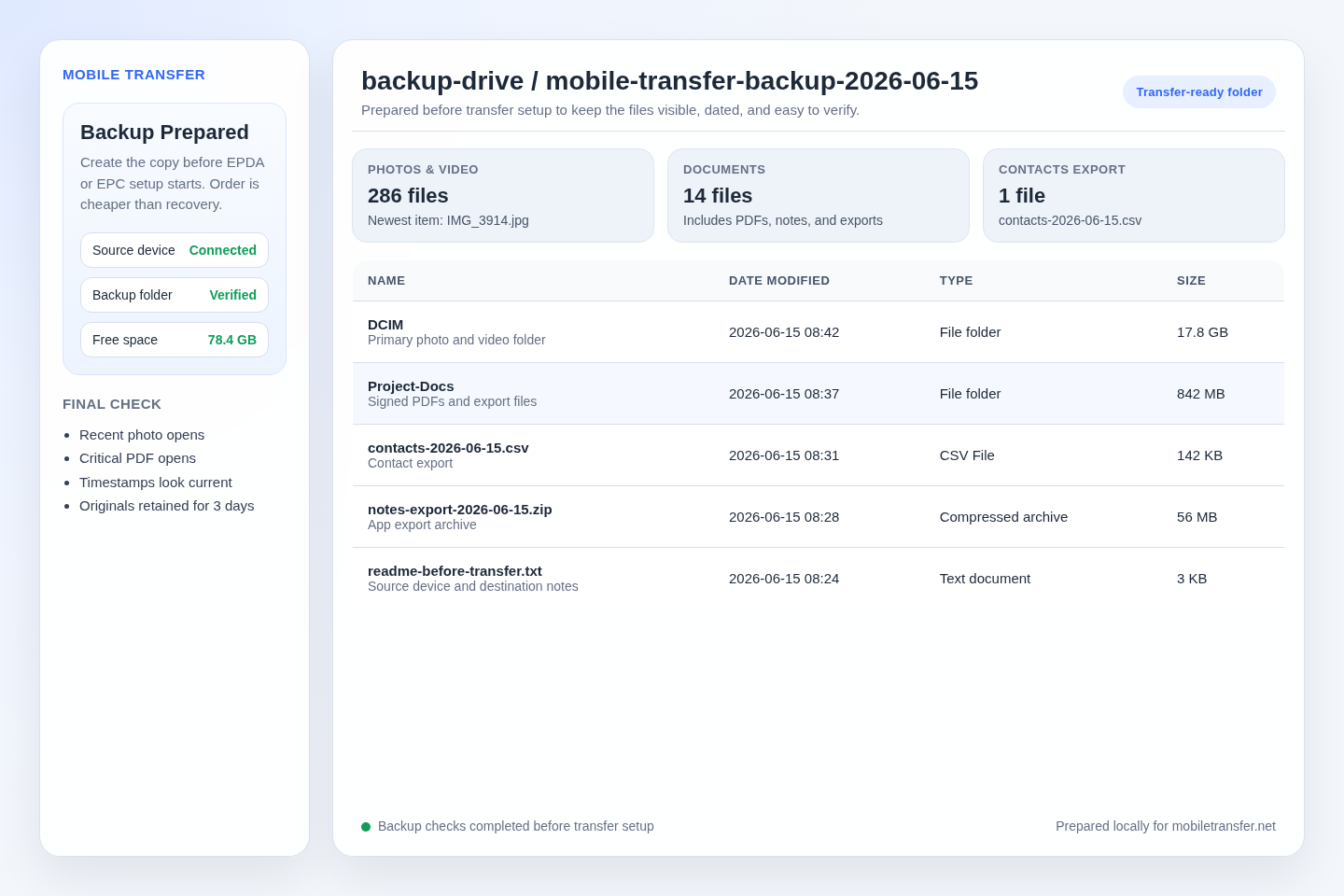
You do not need an elaborate taxonomy. You need a structure that is boring in the best possible way. The simplest method is to create a top-level transfer folder and then split the contents into a small number of categories that match how you will check them later.
I like to use a pattern like this:
01-contacts02-photos03-documents04-app-files05-review
That numbering is not decoration. It creates a stable order that sorts cleanly on nearly every device and makes it harder to forget the important stuff. You can also add subfolders if the category is large enough to deserve them. For example, photos can break into camera-roll, screenshots, and saved-media, while documents can break into ids, receipts, work, and personal.
Here is a practical version of the folder model:
| Category | What belongs there | Suggested naming pattern | Why it helps |
|---|---|---|---|
| Contacts | Exported contacts, vCards, address book backups, account lists | contacts-YYYY-MM-DD |
Easy to identify the most recent export |
| Photos | Camera roll exports, albums, screenshots, edited versions | photos-event-or-year |
Makes verification faster and duplicates easier to spot |
| Documents | PDFs, IDs, receipts, forms, work files, scans | docs-topic-or-purpose |
Separates things you might need from things you simply kept |
| App files | Exports, attachments, offline files, downloaded media | appname-export |
Prevents app junk from blending into important files |
| Review | Items you are not sure about yet | review-later |
Keeps uncertainty out of the main transfer path |
A useful naming convention beats a clever one. Keep names short, consistent, and human-readable. If you use dates, format them the same way every time. 2026-07-23 sorts better than 7-23-26, and it spares you from arguing with your future self about which version is newer.
For broader file-organization logic, Backblaze’s organizing big data article is a useful reminder that grouping related material and naming it consistently makes later retrieval much easier. The scale is different, but the habit is the same.
What to Move First: Contacts, Photos, Documents, Then Everything Else
Priority is the difference between a calm transfer and an anxious one. If you try to move everything in a vague blob, you lose the ability to tell whether the important parts are done. Move in a deliberate order instead.
- Contacts and account recovery data. These are the highest-value small items. They are easy to overlook, and they are annoying to rebuild from memory, which is a famously bad backup strategy.
- Photos and videos. These are often the largest personal files and the ones people notice missing first. They also tend to contain the most duplicates, which is why they deserve an early review.
- Documents. IDs, receipts, PDFs, scans, and work files are usually smaller than media but more important when you need them. If you have ever needed a document right after a transfer, you already know why this category moves before the casual stuff.
- App exports and attachments. Voice notes, downloaded files, shared media, and app-specific exports are useful, but they are often less urgent than the core categories above.
- Everything else. Old downloads, stray screenshots, and the digital equivalent of loose screws can go last. Some of it is worth keeping. Some of it is symbolic debris.
A good rule is to move the things you would miss first if they disappeared. That usually means anything tied to identity, access, memories, or active work. If you are unsure, put the item in the 05-review folder instead of letting it slow down the whole process.
Here is a simple priority table you can use before the transfer starts:
| Priority | File type | Check before moving | Reason |
|---|---|---|---|
| 1 | Contacts and account info | Recent export exists, names are readable, duplicates are removed | Hardest to reconstruct manually |
| 2 | Photos and videos | Albums are sorted, screenshots are separated, obvious duplicates are trimmed | Usually the largest and most visible category |
| 3 | Documents | Important PDFs and scans are grouped by purpose | Often needed soon after the move |
| 4 | App files | Only exports you can explain are included | Keeps the transfer lean |
| 5 | Miscellaneous files | Only keep what still has a job to do | Prevents clutter from pretending to be content |
If you need a second mental model, think of it this way: move the small, essential, easy-to-verify items first. Then move the larger, noisier categories. That sequence gives you confidence early, which matters because confidence is the only transfer accessory that does not need charging.
How to Spot Duplicates and Obvious Clutter
Clutter is not just untidy. It is expensive in time. Every duplicate file and every unlabeled download creates a tiny decision you must make later. On a fresh device, those tiny decisions multiply fast.
Start with the places where clutter usually hides:
- Downloads. This is where useful files and random leftovers go to share a house.
- Screenshots. The screenshot folder is often a museum of temporary thoughts.
- Message attachments. Shared files often get copied into more than one place.
- Edited photos. There may be a camera original, an edited copy, and a version shared to another app.
- App export folders. Many apps create duplicate-looking output with very little explanation.
Then sort by date, size, and name. Date shows you what is old enough to review. Size surfaces oversized files that might be backups, exports, or accidental duplicates. Name reveals patterns, especially if you use prefixes like copy, edited, final, or scan.
If a file does not clearly belong to one of your categories, put it in the review folder and move on. Do not let one uncertain file stall an entire transfer plan. That is how a 15-minute prep job becomes an afternoon of existential admin.
Backblaze’s guide to external hard drives makes a similar point in another context: duplicates and clutter eat space, and backups are only useful if you can understand what is actually inside them. The lesson transfers nicely. Know what you have before you move it.
One practical trick is to create a keep and review split for any messy category. If the file is clearly needed, it goes in keep. If not, it goes in review. That gives you a place to park uncertainty without losing it. Uncertainty loves a parking lot.
Common Mistakes That Turn a Simple Transfer Into a Repair Job
Most transfer problems are not dramatic. They are repetitive. Someone assumes a folder is complete, assumes a backup is current, or assumes that a pile of screenshots counts as an archive. The result is not failure in the cinematic sense. It is just avoidable cleanup.
Here are the mistakes I see most often:
| Mistake | What it causes | Better approach |
|---|---|---|
| Moving files without a folder plan | Everything lands in one pile and becomes hard to verify | Use the same small set of categories every time |
| Trusting memory instead of a checklist | Important items get skipped, especially documents and contacts | Write down the categories and mark them off one by one |
| Keeping duplicates “just in case” | Storage fills up and verification takes longer | Keep one clear version and move uncertain copies to review |
| Mixing originals with exports | You no longer know which file should be trusted | Put exports in their own folder and label them with dates |
| Deleting before backing up | Recovery turns from a simple copy into a small crisis | Back up first, prune second |
There is also a subtler mistake: treating screenshots like they are low-value junk by default. Sometimes they are junk. Sometimes they are proof, a receipt, a reference, or the one image that explains a setting you will need later. The fix is not to keep everything. The fix is to give screenshots their own folder so they can be judged on purpose instead of by accident.
Another trap is file-name drift. If you export the same document three times, call each version something different, and then rely on instinct, you have created a scavenger hunt for later. A small naming rule solves this. For example, use project-name_v1, project-name_v2, and project-name_final only if the file truly is final. If you are naming a fourth version, the word final has already surrendered its meaning.
It also helps to do one tiny test move before the full transfer. Pick a contact export, one photo set, and one document folder. Move those three items first. If the structure works, you have a repeatable pattern. If it does not, you just found out with a small batch instead of the whole library. That is a much cheaper lesson.
A Final Pre-Transfer Review Checklist
Before you start the actual transfer session, run one last review. This is not busywork. It is the last chance to catch something obvious while it is still easy to fix.
Use this checklist:
- There is a recent backup of the source device.
- The transfer folder has a clear name and dated subfolders.
- Contacts or account data have been exported and checked.
- Photos and videos are sorted, and obvious duplicates are trimmed.
- Important documents are grouped by purpose.
- Uncertain files have been moved to a review folder instead of mixed into the main set.
- Anything truly unnecessary has been deleted or left behind on purpose.
- You know which files are first priority if the transfer has to be tested in a small batch.
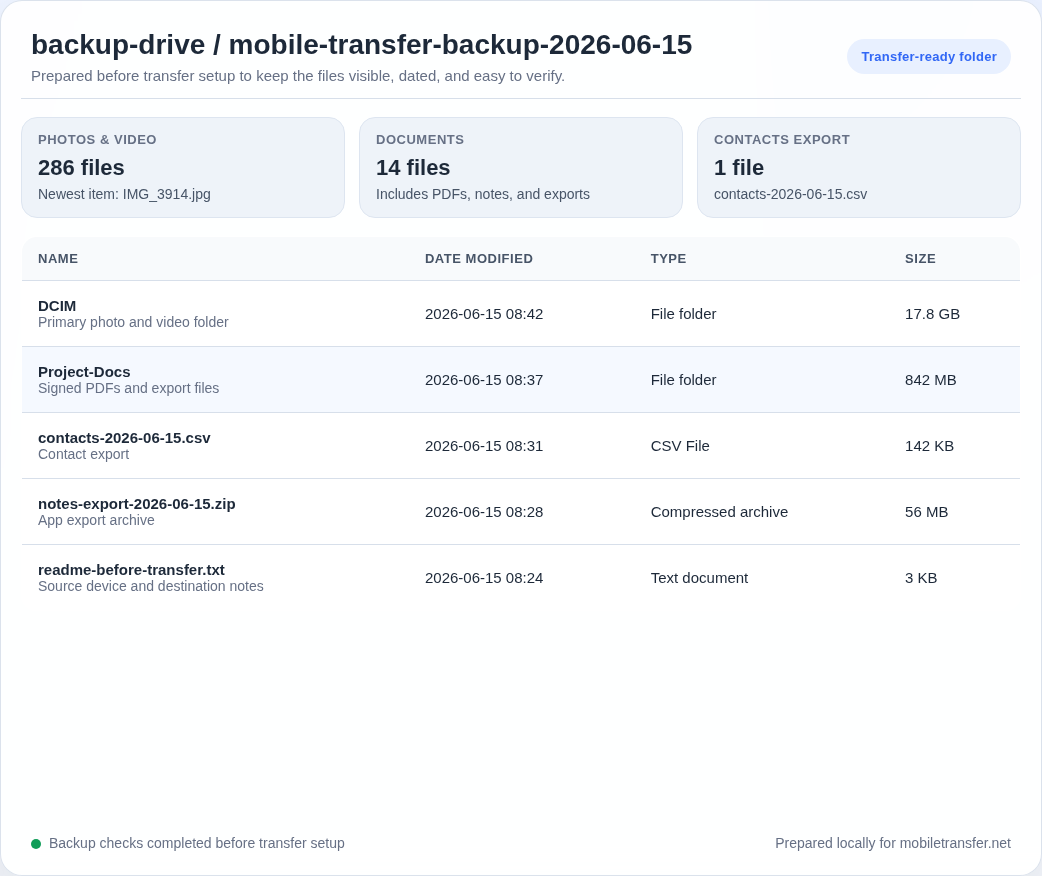
It also helps to do a quick sanity check against the device itself. Make sure the source device is unlocked, the storage state is sensible, and the folders you expect to move are actually visible. If your file manager or cloud service uses its own organization rules, check those too. A structure that looks obvious in your head can be invisible in a different app.
For a practical reminder on the backup side of the process, Apple’s iPhone backup guide is a good benchmark. On Android, Google’s backup instructions serve the same purpose: move confidently only after the source is protected.
How I Would Run the Whole Process
If I had to compress the workflow into a single pass, I would do it like this:
- Create a dated transfer folder.
- Sort everything into contacts, photos, documents, app files, and review.
- Trim duplicates, screenshots, and obvious clutter.
- Export or back up the highest-priority categories first.
- Check the folder names, dates, and file counts.
- Move the clean set.
- Verify the move before adding anything extra.
That sequence is not glamorous. It is just effective. The less time you spend guessing what belongs where, the more time you spend actually finishing the transfer. That is the whole trick.
If you want the broader site map after this article, start with the Home page for the main service overview, then move to Support for help if you get stuck, and use the Blog index to keep the rest of the guides in view. That path is boring too, which is a compliment.
Key Points to Remember
- Organize before you move. It reduces mistakes and makes verification easier.
- Use a simple folder structure. Contacts, photos, documents, app files, and review is enough for most people.
- Move in priority order. Contacts first, then photos, then documents, then the rest.
- Remove duplicates and clutter. Downloads, screenshots, and app exports deserve a review.
- Finish with a checklist. A transfer is done when you can confirm the important files are in place.
When the file system is tidy, the transfer stops feeling like a rescue operation. It becomes what it should have been all along: a controlled move of the right data, in the right order, with fewer surprises.