Mobile Transfer Support: How to Verify Your Files After the Transfer (Contacts, Photos, and Documents)
Before you delete a source folder, trust the result, not the feeling. A transfer can look complete and still fail the only test that matters: whether the contacts open, the photos render, and the documents are actually usable on the destination device.
When people search for a post-transfer check, they usually have the same four questions: Did everything move? Can I read it? Are the photos in the right orientation? Is there anything missing that I will regret deleting later? That is the right mindset. A copy that exists is not the same thing as a copy that works.
I treat verification as a short second phase of the transfer, not a courtesy. If you want a broader baseline on keeping source data safe before any handoff, Apple’s backup guidance for iPhone and Microsoft’s file copy guidance both point in the same direction: keep a known-good source until the destination has been checked. This article shows the practical version of that idea for contacts, photos, and documents.
By the end, you will have a simple verification workflow, a checklist for each data type, a fast completeness check, and a safe recovery path if something looks off. The goal is not perfection theater. The goal is confidence before you move on.
Why verification matters
A transfer is only successful if the destination data is both present and usable. That sounds obvious, but in practice there is a useful distinction:
| Question | What it means | Why it matters |
|---|---|---|
| Did the file move? | The data is visible in the new location. | This is the minimum outcome, not the final one. |
| Can the file open? | The destination app can read it without errors. | This catches damaged transfers and unsupported formats. |
| Does the file match? | The content, size, and count look right. | This catches partial transfers and silent omissions. |
| Is the data current? | The newest items are included. | This matters when you are transferring recent contact edits, fresh photos, or updated documents. |
In other words, a transfer can be technically complete and still be functionally wrong. A photo that opens sideways, a contact that lost its phone number, or a document that shows the filename but not the content all count as failures for practical purposes. Boring verification is cheaper than data recovery. That is not a glamorous conclusion, but it is usually correct.
If you are handling business files or repeated handoffs, the same logic scales into a repeatable workflow. In that context, a neutral example of formalizing the process is AI consulting services, which can help a team turn a checklist into a documented verification path instead of relying on memory and luck.
Before you start: keep the source files until verification is complete
This is the rule that saves people from unnecessary regret. Do not delete the source folder, wipe the old device, or archive the original data until the destination has passed the checks below.
There are three good reasons to keep the source files around a little longer:
- You need a comparison point. If a transfer is missing a handful of contacts or documents, the source makes it easier to see what is absent.
- You may need to rerun only one category. It is much safer to repeat photos or documents alone than to redo everything blindly.
- Some failures appear late. A file can look fine in a folder view and still fail when you open it, zoom it, print it, or sync it into another app.
When a problem appears, keep the source intact, note the category that failed, and isolate the issue before you take another action. The mistake to avoid is deleting evidence before you know what happened.
A practical rule is simple: keep the originals until contacts are readable, photos display correctly, and documents open without errors. If all three pass, then you can move on. If one fails, keep the source and fix only the affected category.
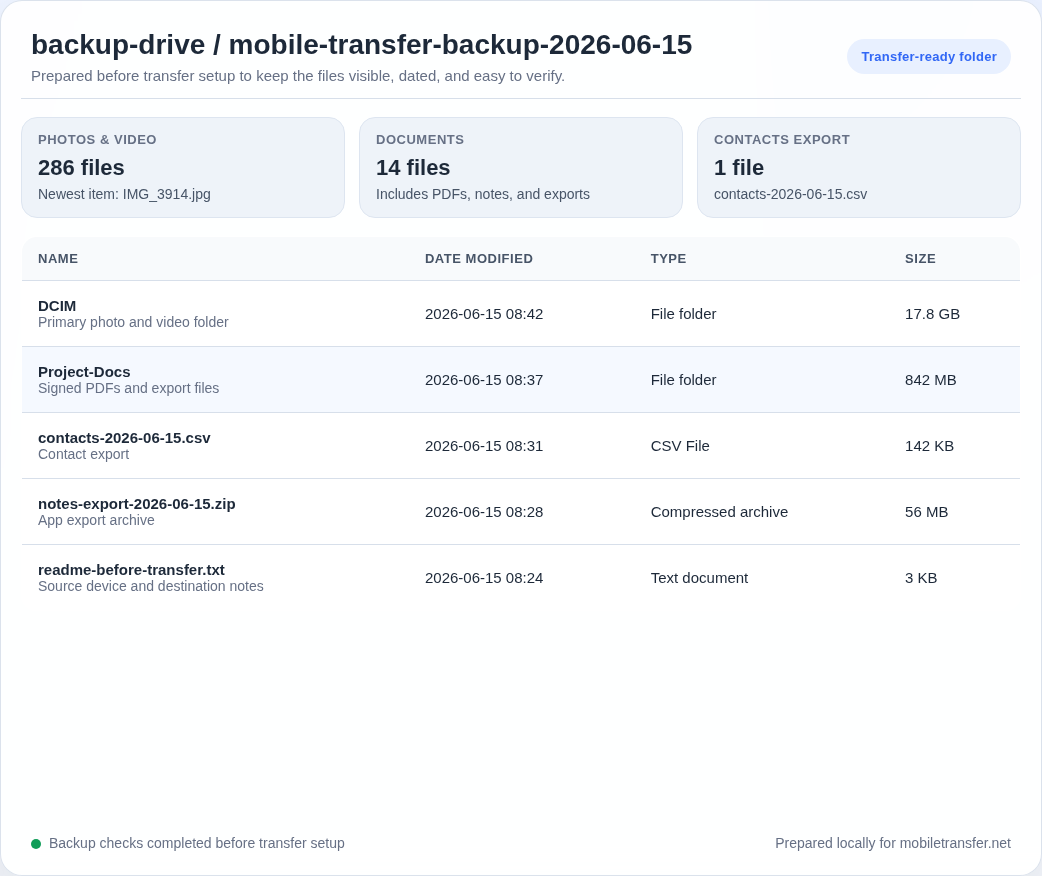
Verification checklist by data type
Different files fail in different ways. Contacts usually fail by omission or bad formatting. Photos fail by rendering issues, orientation, or resolution. Documents fail by corruption, wrong extensions, or partial content. A single generic check is too blunt. Use the right test for each category.
Contacts
Start with a spot-check, not a full review of every entry. Open a representative sample from different parts of the list: a few recent contacts, a few older ones, a few with multiple phone numbers, and a few with notes or email addresses attached.
- Confirm that names are spelled correctly.
- Open at least a few contacts and verify that the main phone number matches the source.
- Check that email addresses, company names, and notes carried over if they matter to you.
- Look for duplicates created during import or sync.
- Watch for blank entries, truncated numbers, or contacts that only imported part of the record.
If the destination app lets you sort by recently added or modified contacts, use that view first. New transfers are the easiest place to catch formatting problems because the most recent items are still fresh in your memory.
For contacts moved from an Apple device, Apple’s support material on iPhone backups is a useful reminder that the original data set should stay available until you know the result is clean. The same logic applies whether the transfer path is local or cloud-assisted: verify before you trust the new copy.
Photos
Photos need more than a thumbnail glance. A thumbnail may exist even when the file is incomplete, and a file may open even when the rotation or resolution is wrong. Open a sample set across different dates and folders so you are not only testing the newest items.
- Open a mix of recent and older photos.
- Check whether thumbnails display correctly before opening the full image.
- Confirm rotation, crop, and aspect ratio on a few images.
- Zoom in on at least one or two photos to see whether detail is intact.
- Watch for blank previews, low-resolution copies, or images that fail to render at full size.
If the photos came from a phone, remember that a visible image in one app does not always mean the original file has transferred cleanly. Sync systems can show cached or optimized versions. Apple’s iCloud Photos guidance is a useful reference point here because it separates the ideas of availability, sync state, and actual file presence.
For a fast reality check, ask one question: does the destination hold the same images, in the same practical form, as the source? If the answer is no, the transfer is not finished, even if the gallery looks busy.
Documents
Documents deserve the most disciplined test because they often contain the least obvious damage. A PDF can open but lose pages. A spreadsheet can load but misread a formula. A text file can appear correct while being truncated near the end. Open a few representative files from each important type, not just the easiest ones.
- Verify the file extension matches the expected format.
- Open a sample PDF, spreadsheet, text file, or presentation if those are part of your transfer.
- Compare file sizes between source and destination when the format should stay the same.
- Check that filenames were not altered in a way that hides the file type.
- For critical documents, use a stronger integrity test if available.
For everyday files, opening a sample set is usually enough. For important exports, a stronger test is worth the time. The GNU coreutils SHA-2 utility documentation explains the checksum approach, and the general idea of a checksum is summarized clearly in Wikipedia’s checksum overview. If the file matters enough to cause trouble later, it often matters enough to verify more carefully now.
How to do a quick completeness check
Once the spot checks look good, do a faster accounting pass. This is the part that catches the quiet mistakes: a folder that missed a subfolder, a recent document that did not move, or a photo batch that stopped one item short.
The quickest completeness check uses three questions:
- Count: Do the source and destination counts look close enough for the category you transferred?
- Size: Does the destination folder or export have a similar total size to the source?
- Timestamps: Do the newest items show a recent modification date that matches the transfer window?
Those checks will not prove every byte is perfect, but they will tell you whether the transfer is broadly intact. That is usually enough to decide whether you need more testing or whether the destination is ready to use.
Here is a simple way to run the pass:
- Compare the number of contacts exported or imported, if the app shows a count.
- Compare the number of photo folders or albums, not just the number of images.
- Compare the size of document folders, especially if they contain PDFs or scans.
- Review the most recent timestamps first, because those items are the most likely to reveal a partial transfer.
If the counts are close but not exact, do not guess. Check whether the destination app excludes duplicates, skips hidden items, or normalizes certain file types. A small gap may be expected. A large gap is a warning.
Common issues you might notice after transferring
Most problems show up in familiar forms. You do not need a huge diagnostic tree to recognize them. You need a short list of what bad looks like.
| Symptom | What it usually means | First thing to check |
|---|---|---|
| Missing contacts | The import skipped an entry or the source list was incomplete. | Compare the source export against the destination contact list. |
| Blank contact details | Only part of the contact record transferred. | Open the record and check phone, email, and notes separately. |
| Unreadable photos | The image file is damaged or the destination app cannot render it well. | Open the same photo in another viewer if available. |
| Wrong rotation or low quality | The destination app is showing an optimized preview instead of the original. | Look for the original file size and file location. |
| Documents open but look incomplete | The file transferred, but not cleanly. | Compare file size and page count, or reopen it in a different app. |
| Duplicate files or entries | The transfer imported the same item more than once, often from repeated attempts. | Sort by date added and compare with the source before cleaning anything up. |
If you see one of these patterns, do not assume it is a random glitch. Patterns matter. A repeated problem in one category usually points to a repeatable fix in that same category, not to a complete restart.
If something looks wrong: safe recovery steps
Recovery should be narrow, calm, and specific. The safest sequence is simple: hold the source, isolate the problem, and rerun only what needs rerunning.
- Keep the source untouched. Do not clean up the original folder yet.
- Identify the failed category. Decide whether the issue is contacts, photos, or documents.
- Recheck the destination view. Make sure the problem is not just a display issue in one app.
- Rerun the affected category only. Avoid repeating categories that already passed.
- Compare again after the retry. Use the same checklist you used the first time.
Do not overwrite blindly. A second transfer can create its own mess if you do not know which copy is better. If the retry succeeds, keep both copies long enough to confirm the new one is the one you want to keep.
For important documents, consider checksum-based verification when the file format and tools allow it. That is where a utility reference like GNU’s SHA-2 documentation becomes useful: it helps you move beyond “the file opens” and toward “the file matches.” For ordinary personal files, that level of checking may be more than you need. For critical files, it is often the right trade.
If the problem persists after a narrow retry, stop and review the scope. Is the issue limited to one folder, one file type, or one recent batch? If so, the fix is usually still contained. If the issue crosses categories, pause and gather the facts before trying again.
A simple pass or fail rule
Sometimes readers want a faster answer than a full checklist. In practice, I use a straightforward rule: if the destination passes all three of these, I treat the transfer as usable.
- It opens. The main contacts, photos, and documents load without errors.
- It matches. The counts, sizes, and newest items line up with the source closely enough for the data type.
- It makes sense. Names are readable, images are upright, and documents are complete.
If one of those three fails, I do not call the transfer finished. That does not mean the entire job is broken. It means the job is incomplete in one specific place, which is much easier to fix if you know where to look.
For example, a missing middle section in a contact record usually points to import mapping or field support. A photo that opens but is rotated incorrectly usually points to orientation handling or preview rendering. A document that opens but loses a page usually points to corruption or a partial copy. That kind of classification matters because it keeps you from starting over when you only need one clean retry.
A transfer becomes boring in the best possible way when the same pass/fail rule works for every category. The process is simple, but simplicity is earned. It comes after you have checked the data, not before.
What I would do in practice
Here is the shortest usable version of the workflow:
- Keep the source files.
- Spot-check contacts, photos, and documents.
- Run a count, size, and timestamp pass.
- Fix only the category that failed.
- Delete or repurpose the source only after the destination passes.
That sequence is not complicated, and that is the point. Verification should reduce uncertainty, not create a second job. If the file set is small, the checks take only a few minutes. If the file set is large, the checks save you from a much larger cleanup later.
When you need more help, start at the Home page for the main site overview, then use the Mobile Transfer page for the core service context. If you need a broader help path, the Support page and the Contact form are the best next stops. For more practical guides, the Blog index collects the latest articles in one place.
Key takeaways
- Verification is not optional. A transfer is only useful if the data opens, matches, and makes sense on the destination.
- Keep the source files until you finish checking. That gives you a safe fallback if one category fails.
- Use different checks for different data types. Contacts, photos, and documents fail in different ways.
- Do a quick completeness pass after the spot checks. Counts, sizes, and timestamps help catch quiet omissions.
- Recover narrowly. Rerun only the category that failed, then compare again before deleting anything.
If you follow that order, you will usually know the answer to the only question that matters: is the transferred data ready to keep, or does it still need work?